Good images make a page look finished — but the wrong image can cost you a takedown notice or a license bill. This is the practical order: find free ones, confirm you’re actually allowed to use them, make your own when nothing fits, and know when paying is the cheaper option.
Every page needs images, and you have three routes to them: a free stock library, a design tool you use to make your own, or a paid library when neither of the first two fits. The order matters, and so does one step almost everyone skips — checking the license on the specific image before it goes live. “Free” and “safe to publish” are not the same thing.
Table of Contents
Step 1 — Start with a free stock library
Free stock libraries — Pexels, Unsplash and Pixabay — give you photos and illustrations offered for commercial use at no cost. Search by subject, filter by orientation or color, and download at the size you need.
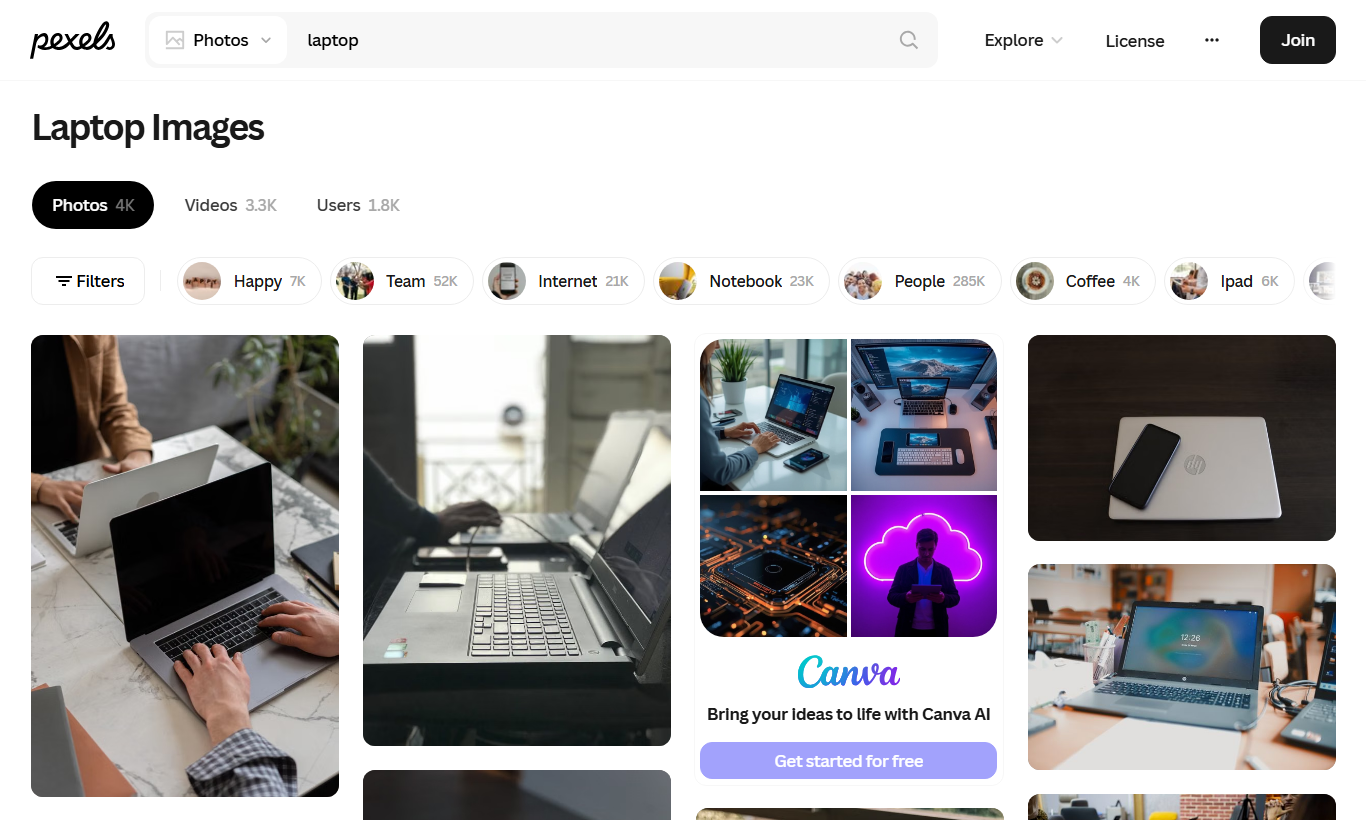
For most articles this is enough. Pick images that match your subject rather than generic “business” stock — a page about a specific tool is better served by a screenshot of that tool than by a photo of a handshake. Download the smallest size that still looks sharp at its display width; an oversized hero image is the most common cause of a slow page.
Step 2 — Check the license before you publish (the step people skip)
This is the one place to slow down. A library can advertise “free for commercial use” on its homepage while individual images carry extra conditions. Open the license summary and read what it actually permits. Pixabay’s, for example, is refreshingly plain:
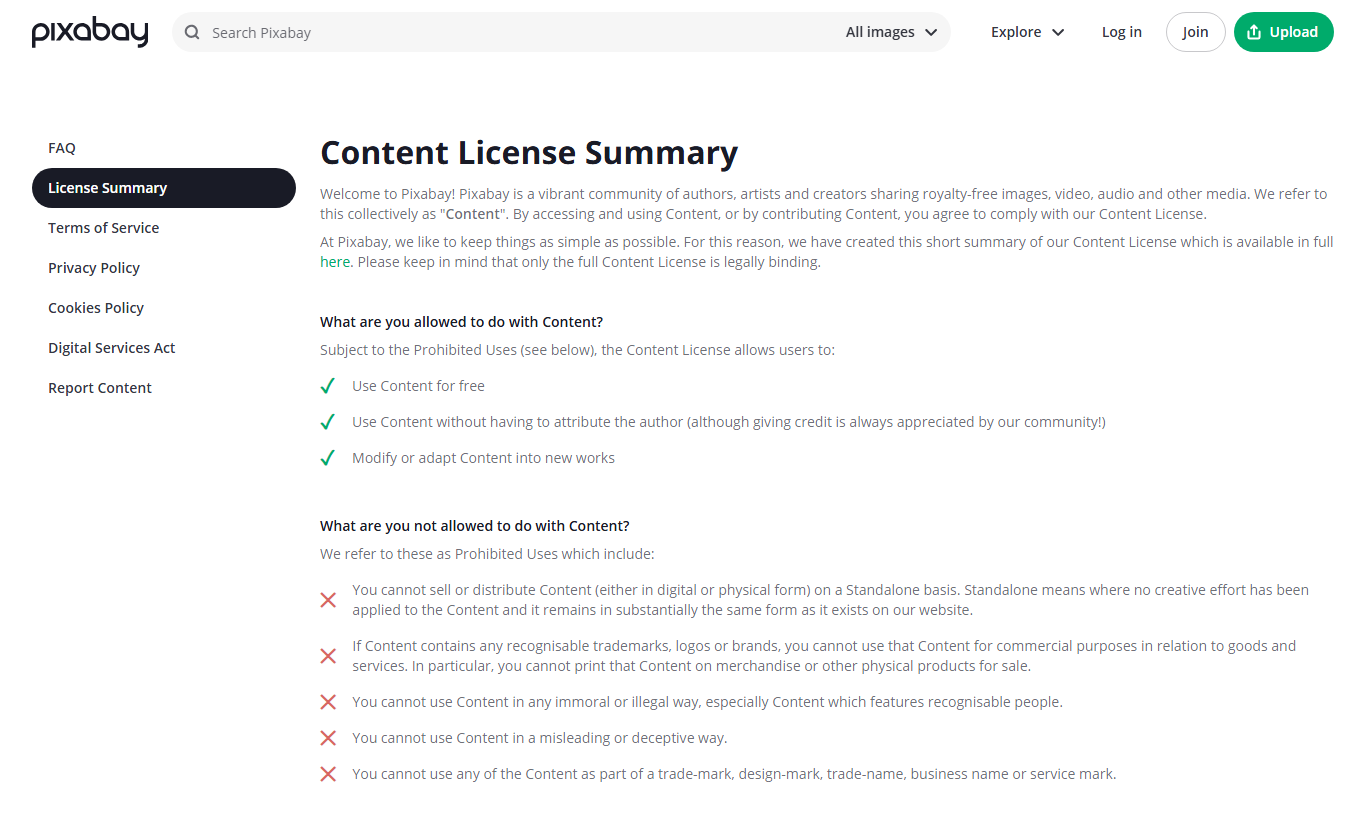
Three conditions recur across almost every free library, and they are the ones that cause trouble:
- No standalone resale. You can use the image in your content; you cannot sell the image itself, or drop it on a mug and sell that, without adding real creative work.
- No recognizable brands or logos for commercial gain — a photo that prominently features a trademarked product can’t be used to promote goods or services.
- No recognizable people in a sensitive or misleading context. Faces need care; when in doubt, choose an image without an identifiable person, or one with a stated model release.
Attribution is a separate axis: Pixabay and Unsplash don’t require credit (it’s appreciated), while some other sources and specific images do. The rule that never fails: check the license on the individual image, not the brand of the site.
“Free” and “safe to publish” are not the same thing — the licence is per image, not per site.
Step 3 — Create your own when stock won’t do
When no stock image fits — you need your logo on it, a specific layout, or a branded card — make it. A free design tool like Canva or Adobe Express handles the everyday graphics that used to need desktop software: social cards, simple banners, resizing to an exact aspect ratio, light edits.
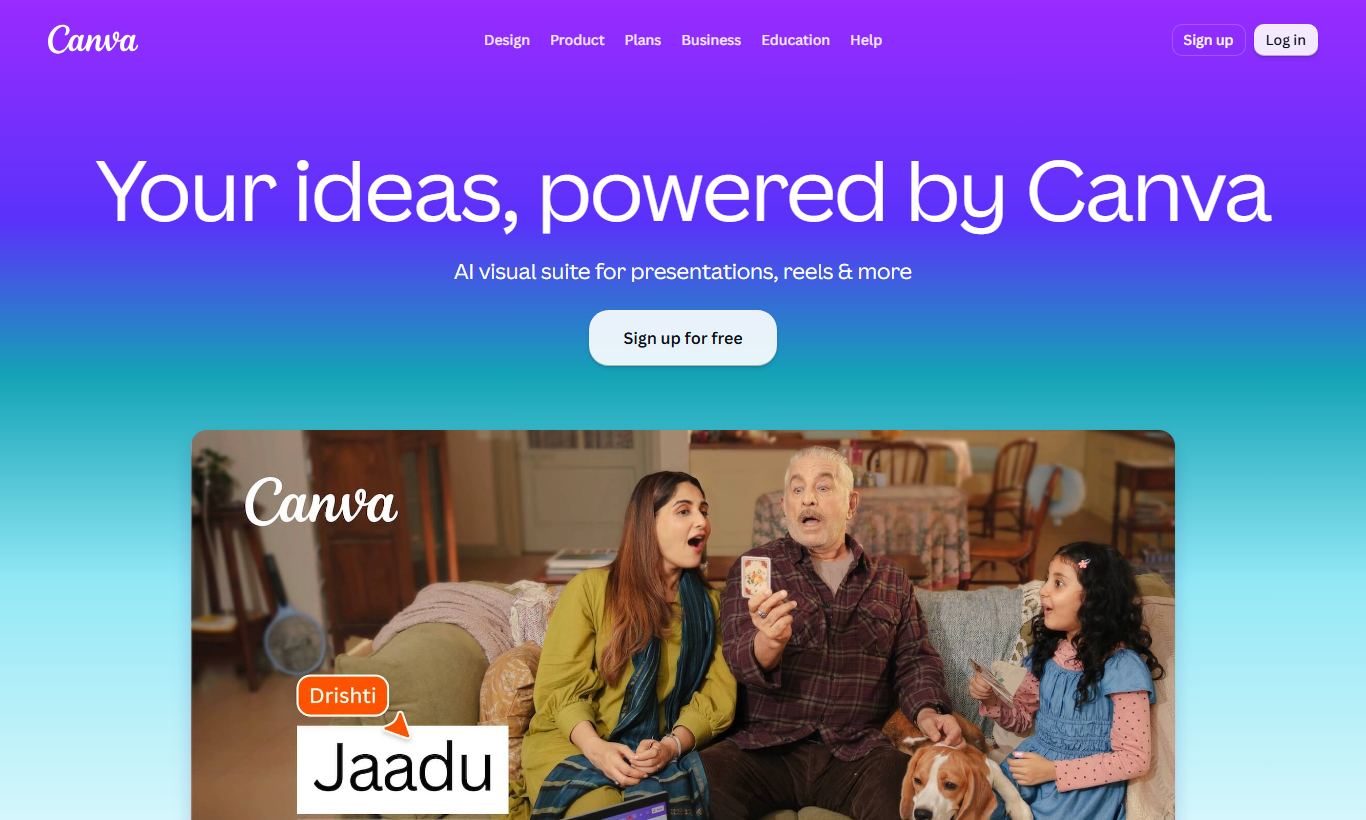
Anything you create yourself is the safest possible source: there’s no third-party license to verify because the work is yours (mind the tool’s own asset licenses if you drop in their stock elements). For consistency — the same fonts and colors across every card — a design tool beats hunting for a matching photo every time. Consistency reads as “finished” more than any single polished image does.
Step 4 — When free isn’t enough: paid and affiliate libraries
Free libraries thin out for specific, exclusive, or model-released imagery. That’s when a paid library earns its fee — Adobe Stock, Shutterstock, iStock, Depositphotos and Envato Elements among them. What you’re really buying is not just higher quality but certainty: a clear commercial license, model and property releases, and often an indemnity that shifts legal risk onto the vendor. For anything customer-facing where a license dispute would be expensive, that certainty is the cheaper option.
Disclosure: some links in this section are affiliate links — if you subscribe through them the site may earn a commission at no extra cost to you (see the legal do’s and don’ts for affiliate sites).
A paid library sells certainty and indemnity, not just quality — that’s what shifts the legal risk.
Step 5 — Record where every image came from
Whichever route you take, keep a one-line record per image: the source, the URL, the license, and the date. A simple spreadsheet or a note in your media library is enough. It costs seconds now and saves an afternoon later — if a license query ever arrives, you can show provenance in one lookup instead of reverse-searching your own site. This is the cheap insurance that makes the whole “free” route genuinely safe.
Record where every image came from, and a future licence query becomes a ten-second lookup.
The short version
The working order: search a free library first; verify the license on the specific image; if nothing fits, make it in a design tool; reach for a paid or affiliate library only when you need exclusivity, model releases, or indemnity. Then record the provenance so today’s diligence is still there in a year. Most sites never need to spend a rupee on images — they just need to check the license they already have. Images are one piece of a fast, well-made site: pair this with the free web-performance and media tools, and once an image is uploaded make sure WordPress generates every size it needs.
Frequently Asked Questions
Are free stock images really free for commercial use?
Usually yes, but verify per image rather than trusting the site’s banner. Free libraries like Pexels, Unsplash and Pixabay license most content for commercial use at no cost — but individual images can carry conditions (attribution, no standalone resale, restrictions on recognizable brands or people). Open the license summary and confirm it for the specific image before you publish.
Do I have to credit the photographer?
It depends on the library and the image. Pixabay and Unsplash don’t require attribution (they welcome it); other sources, and specific images even on “no-credit” sites, may require it. Check the license on the individual image. When credit is required and you skip it, you’ve breached the license even though the image was “free”.
Should I use free stock or make my own?
Make your own whenever you can produce what you need — it removes third-party license risk entirely and keeps your visuals consistent. Reach for stock when you need a photograph you can’t take yourself. A free design tool (Canva, Adobe Express) covers cards, banners and resizes without any downloaded software.
Is it ever worth paying for images?
Yes — when you need exclusivity, on-brand imagery, model or property releases, or the legal indemnity a paid license provides. For customer-facing pages where a license dispute would be costly, a paid or affiliate library is buying certainty, not just a nicer photo. For everyday article images, the free route plus a license check is almost always enough.

