A wall of un-styled cells buries good data. TablePress builds clean WordPress tables you can sort, search and page through, without writing a line of code, and keeps each table in one place so an update lands everywhere it’s embedded.
Tables are where a lot of articles lose readers: comparisons and stats crammed into raw cells nobody can scan. To see exactly what TablePress adds, we built the same 15-row table both ways on a test site, once with the built-in WordPress Table block and once with TablePress 3.4, both on WordPress 7.0 with the default Twenty Twenty-Five theme. The screenshots below are from that test.
Build or import, insert with the TablePress block (or the shortcode). Clean, readable — enough for most articles.
Sort, search, paginate — on by default. Adds JavaScript: switch it off for small tables that don't need it.
Horizontal scrolling (free) keeps wide tables in their own box. Collapse, stack and flip layouts are paid extras.
Table of Contents
The WordPress Table block vs TablePress: what changes
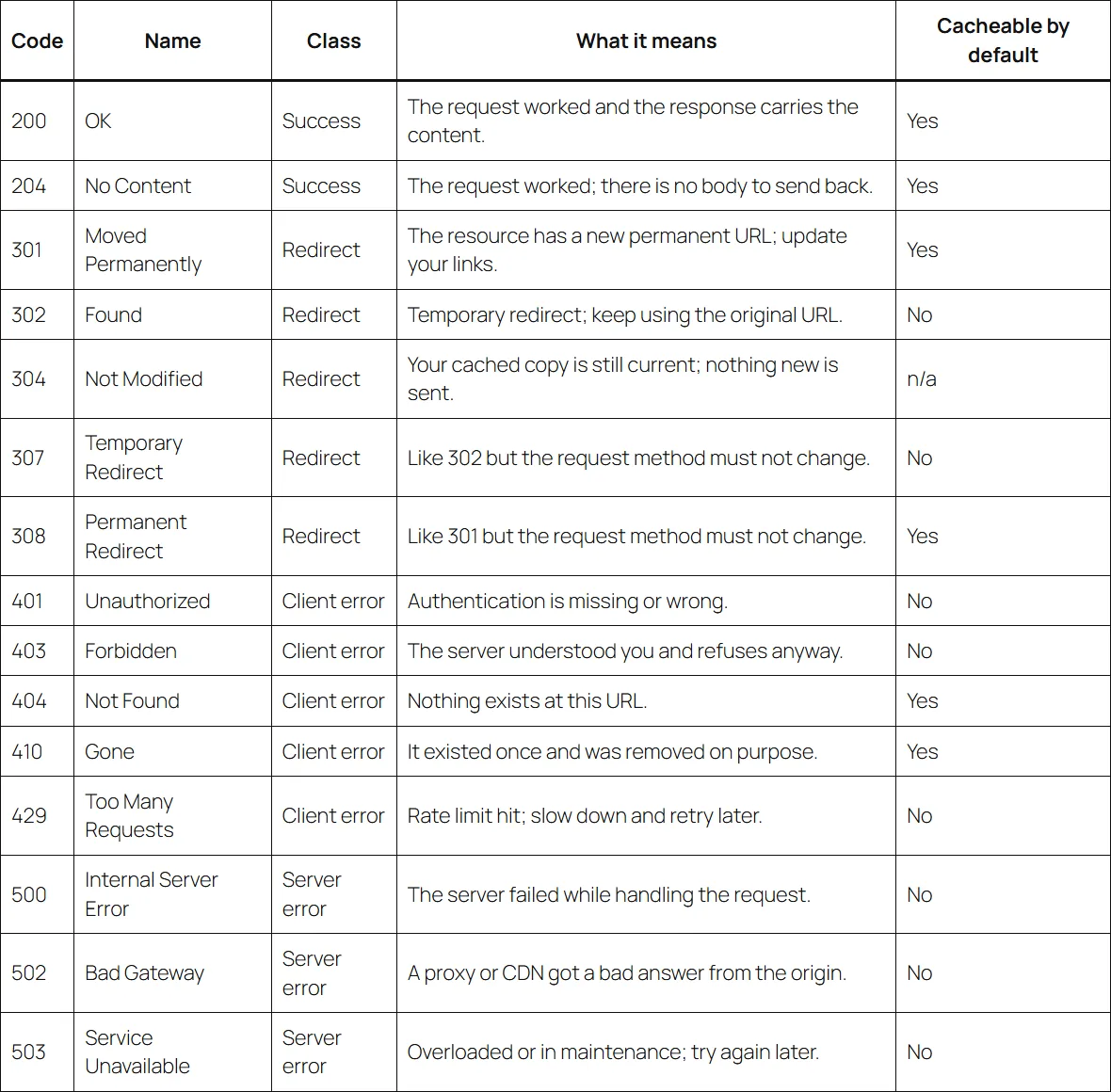
WordPress already has a Table block, and for a small table it’s fine. Here are the same 15 HTTP status codes in it: clean, bordered, and every row printed, top to bottom.
The same rows in TablePress look like this. The data is identical. What’s new is the layer around it: a search box, sortable column headers, a rows-per-page selector, and pagination with an entry count.
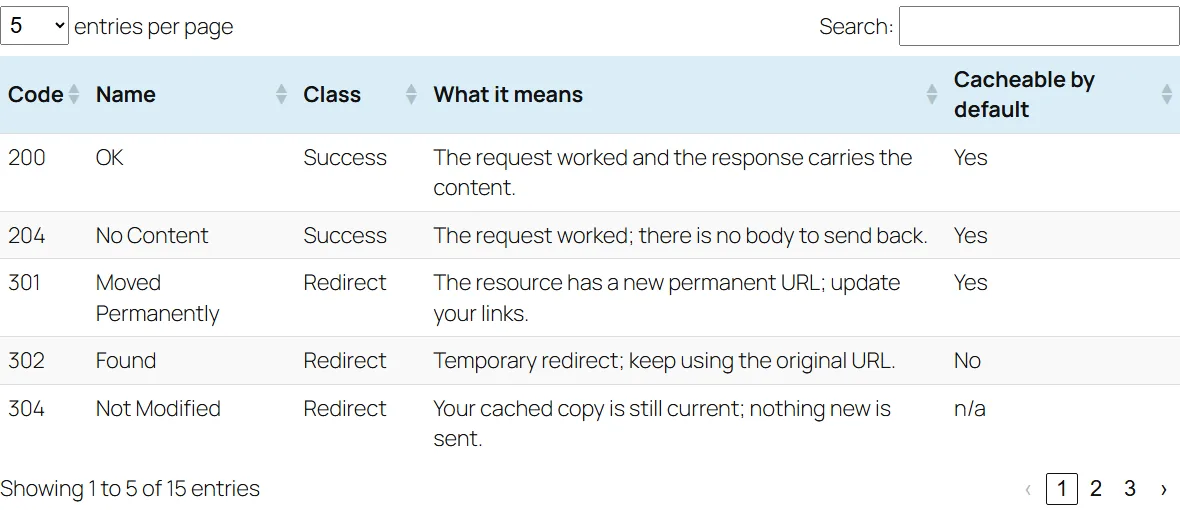
That’s the trade in one picture. The Table block gives you a static grid; TablePress gives readers a way to work with the data, at the cost of loading a JavaScript library on the page.
Tier 1: a clean basic table (no code)
The quickest win, a readable table in minutes:
- Install and activate TablePress from the plugin repository.
- TablePress → Add New Table to start from an empty grid, or Import a Table to bring the data in.
- Fill in or check the data in the table editor, give the table a name and description, and save.
- In the post, add the TablePress table block and pick the table. (The shortcode,
[table id=1 /], still works anywhere blocks don’t.)
Importing beats retyping. The import screen takes a file upload, a URL, a file already on the server, or plain pasted text, and reads CSV, Excel (XLSX), ODS, HTML and JSON. We pasted our 15 rows as CSV:
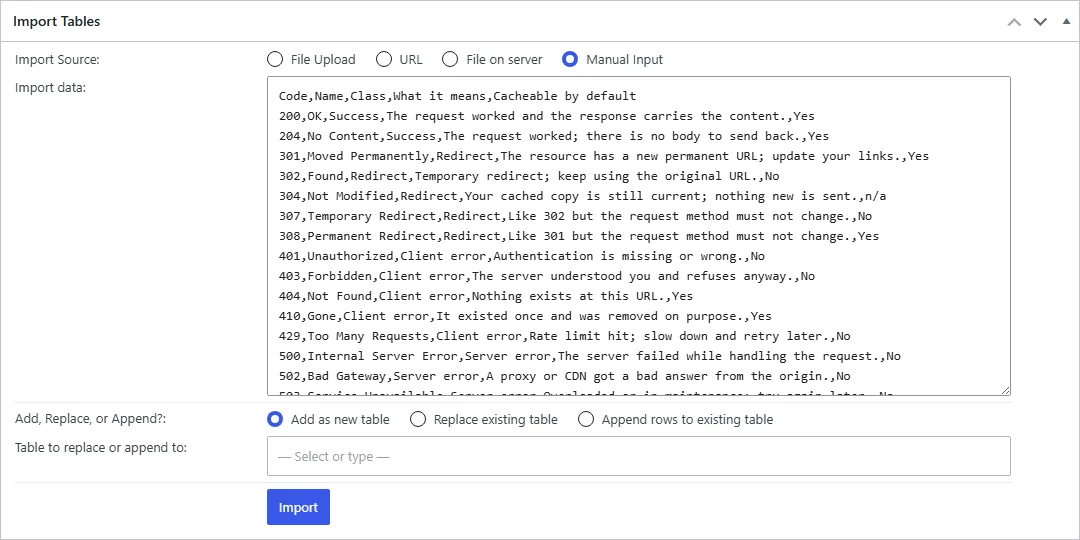
That’s it: a clean table with no HTML to hand-maintain. For many articles this tier is all you need.
Insert the table by block or shortcode, never as pasted HTML. Edit the table once and every embed updates with it.
Tier 2: interactive tables (sort, search, paginate)
TablePress’s DataTables integration turns a static grid into something readers can work with: sort any column, search within the table, and page through long datasets. The settings live on each table’s Edit screen, in the Table Features for Site Visitors panel.
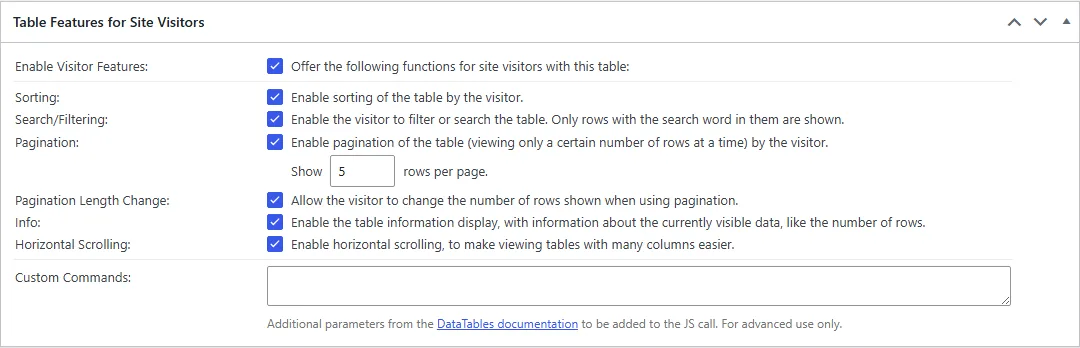
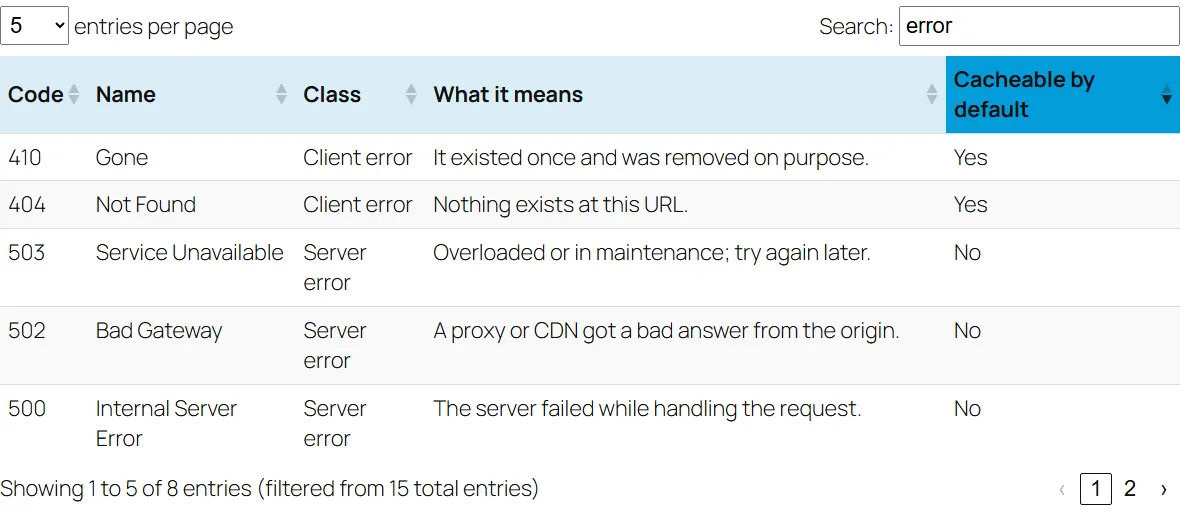
One thing we didn’t expect: on our freshly imported table, sorting, search, pagination, the rows-per-page selector and the info line were already ticked. So the real decision is the opposite of what most guides describe. It isn’t “remember to switch them on”, it’s “switch them off where they don’t help”. In use, it works the way a reader hopes. Typing error into the search box and sorting by the last column narrowed 15 rows to the 8 error codes, cacheable ones first:
The caveat: these features load JavaScript, so reserve them for tables that genuinely benefit. On a five-row table they’re just extra script weight on the page.
Tier 3: make it mobile-friendly
With most traffic on phones, wide tables are the real test. Here’s what we saw at a phone’s 390-pixel width:
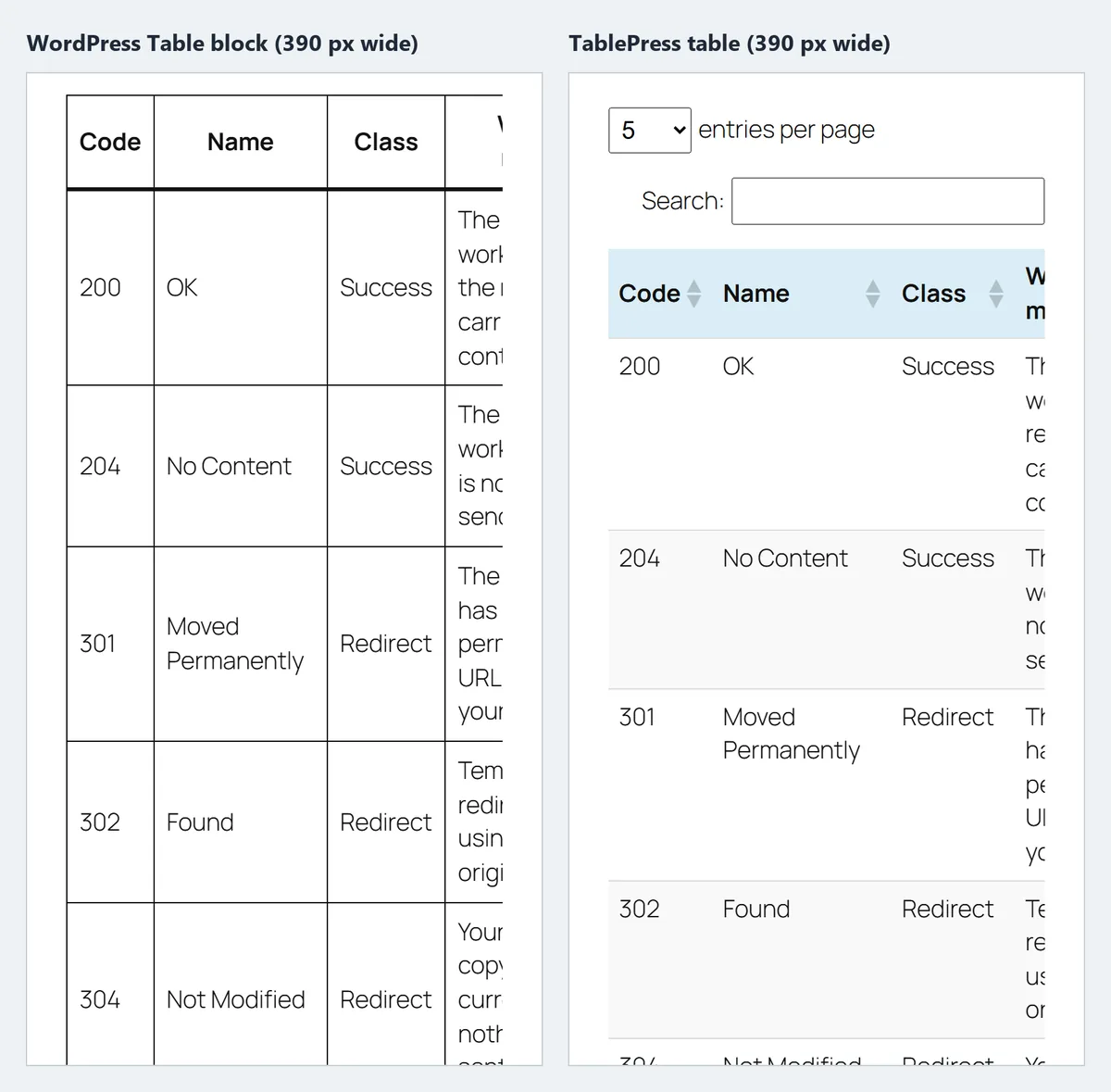
Two honest findings from that test:
- Both scroll sideways. In this block theme the Table block already wraps the table in a box that scrolls horizontally, so neither version broke the page layout. Older or heavily customised themes don’t always do this, so check yours on a phone.
- TablePress’s real phone advantage is pagination. Five rows at a time instead of fifteen made the TablePress page about a third shorter than the Table block page at the same width.
In the free version, the mobile setting is the Horizontal Scrolling checkbox in that same Table Features panel. Tick it for any table with more than a few columns and it scrolls inside its own container. There is no separate “responsive mode” switch in the free plugin’s options. The layouts that rearrange a table for small screens, collapse (extra columns fold into an expandable row), stack and flip, come from the Responsive Tables module in the paid Pro and Max plans. Whichever you use, test on a real phone.
Best practices (and common mistakes)
A few habits keep TablePress tables clean:
- Always label columns with clear headers. A headerless table is unreadable and inaccessible.
- Give each table a name and description for context (and screen readers).
- Turn on Horizontal Scrolling for anything wide, rather than hoping the theme handles it.
- Switch sort, search and pagination off on small tables. They’re on by default, and a three-row table doesn’t need the JavaScript.
- Limit tables per article. Clarity over quantity: only include the comparisons that earn their space.
- Import rather than retype. Paste CSV or upload an Excel, ODS, HTML or JSON file straight from the source.
A table without headers isn’t a table, it’s a grid nobody can read. Label the columns first, style second.
The short version
TablePress builds code-free WordPress tables you insert with its block or shortcode, so one edit updates every embed. Compared with the built-in Table block, it adds sorting, search and pagination, switched on by default, so turn them off where a table is small. On phones, the free Horizontal Scrolling option keeps wide tables inside their own box, and pagination keeps long tables short; collapse, stack and flip layouts are paid extras. Label columns, name every table, and import from a spreadsheet rather than retyping.
Frequently Asked Questions
Do I need coding skills to use TablePress?
No. TablePress is built for non-coders: you create or import tables in a visual editor and insert them with a block or shortcode. Custom CSS can refine the styling if you want it, but nothing about the core workflow requires code.
Can I import data from Excel or Google Sheets?
Yes. TablePress imports CSV, Excel (XLSX), ODS, HTML and JSON, by file upload, URL, a file on the server, or pasted text. From Google Sheets, download the sheet as CSV or XLSX and import that. Re-importing with “Replace existing table” is also how you bulk-update a large table.
How do I make a TablePress table mobile-friendly?
In the free version, tick Horizontal Scrolling in the table’s Table Features for Site Visitors panel, so wide tables scroll inside their own container instead of overflowing. Pagination helps too, since long tables show a few rows at a time. Collapse, stack and flip layouts need TablePress Pro or Max. Test on a real device to confirm readability.
Can readers sort and search the table?
Yes, and on a new table it’s already on. TablePress’s DataTables integration adds column sorting, a search box and pagination, controlled per table in the Table Features for Site Visitors panel. Switch them off on small tables, since they load JavaScript a static table doesn’t need.
If I update a table, does it change everywhere it’s used?
Yes, that’s the point of inserting it by block or shortcode. The table lives in one place, and every post that embeds it reflects your edit automatically. It’s why you should never paste a table in as static HTML.

