The snippet most sites copy to edit WooCommerce products in the block editor comes in three parts. On current versions, one does the work, one repeats something WooCommerce already does, and one hooks a filter WordPress doesn’t have.
use_block_editor_for_post_type filter that returns false for product. To get the block editor for WooCommerce products back, add the same filter returning true for product, at priority 20, so it runs after WooCommerce’s. That one filter is the whole fix. The widely copied version adds two more parts: one forces product categories and tags into the REST API, which WooCommerce 10.8.1 already does, and one hooks use_block_editor_for_term, which appears nowhere in WordPress 7.0.2. Its main filter also sits at priority 10, the same as WooCommerce’s, so whether it works depends on which one loads first.Table of Contents
Why products open in the classic editor
The product edit screen in WooCommerce is still the classic one: a title, the old content editor, and the meta boxes for product data and the short description underneath. That’s a choice WooCommerce makes in code, not a limitation of WordPress. In WooCommerce 10.8.1 the product post type supports the editor and is registered with show_in_rest => true, which are the two things the block editor needs. Then WooCommerce adds a filter, described in its own source as “Disable Gutenberg for products”, that returns false for product.
WordPress checks that filter last. If the post type supports the editor and is in the REST API, the filter decides. So a single filter that returns true is enough to turn it back on, as long as it gets the last word.
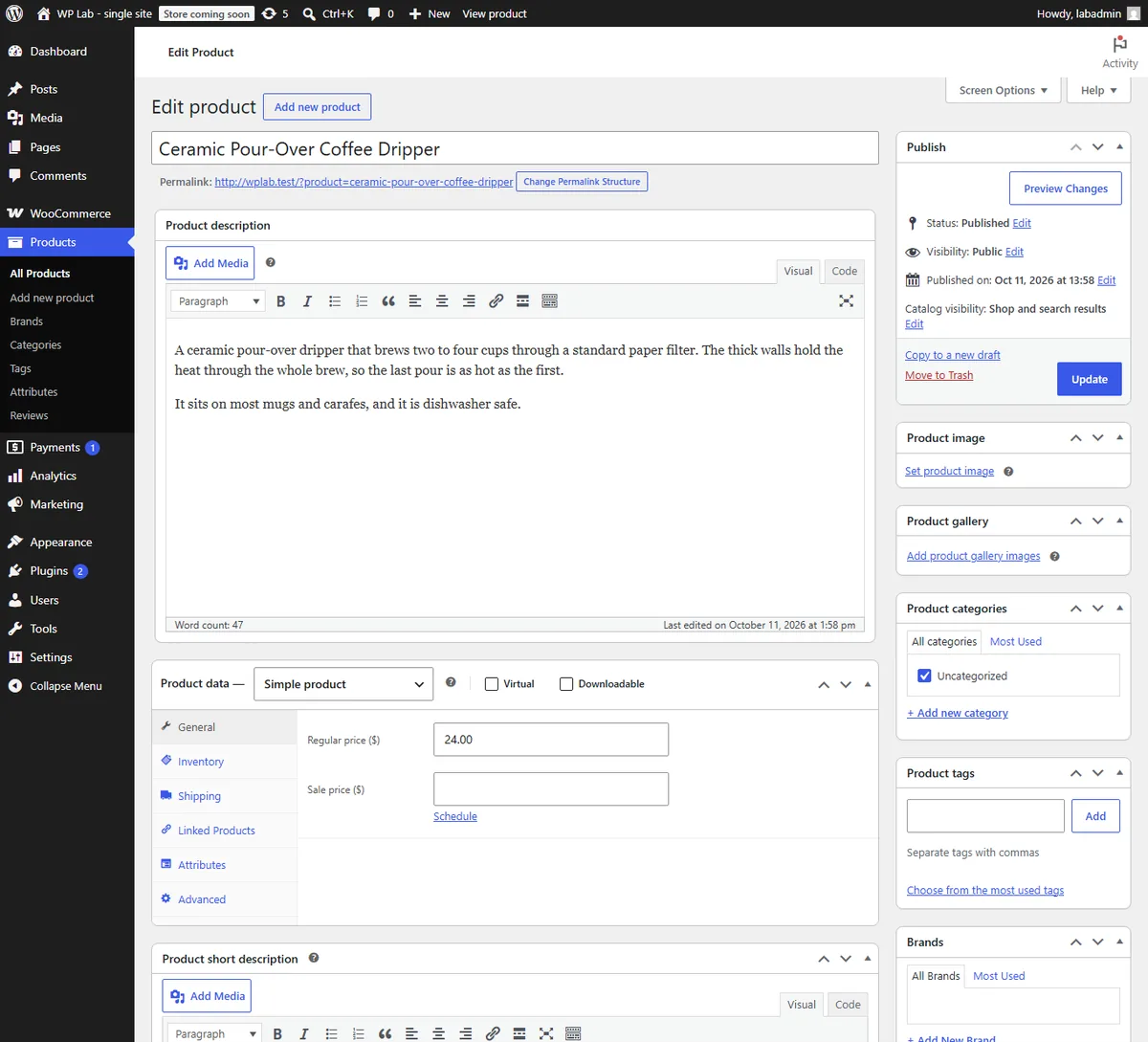
WooCommerce is also building its own block-based product form, listed among its features as the “New product editor”. In 10.8.1 it’s still marked as a beta and experimental. That’s a separate thing: it replaces the whole product screen with WooCommerce’s own layout, where the filter in this article puts products in the standard WordPress block editor.
The snippet most people copy
This is the version that circulates, with neutral function names. You’ll find it on many sites in nearly the same form:
// 1. Use the block editor for products.
add_filter( 'use_block_editor_for_post_type', function ( $can_edit, $post_type ) {
    if ( $post_type === 'product' ) {
        return true;
    }
    return $can_edit;
}, 10, 2 );

// 2. Make product categories and tags available to the REST API.
function example_product_taxonomy_rest( $args ) {
    $args['show_in_rest'] = true;
    return $args;
}
add_filter( 'woocommerce_taxonomy_args_product_cat', 'example_product_taxonomy_rest' );
add_filter( 'woocommerce_taxonomy_args_product_tag', 'example_product_taxonomy_rest' );

// 3. Use the block editor for category and tag screens too.
add_filter( 'use_block_editor_for_term', function ( $use_block_editor, $taxonomy ) {
    return true;
}, 10, 2 );
Code language: PHP (php)
Each part sounds reasonable. We checked each one against the source of WordPress 7.0.2 and WooCommerce 10.8.1.
Part 1 does the work, if it runs last
Two filters on the same hook at the same priority run in the order they were added. WooCommerce adds its filter while its plugin file loads. Whether yours comes after it depends on where you put it.
We ran both filters through WordPress 7.0.2’s own hook code (wp-includes/plugin.php, no database needed), with WooCommerce’s logic copied exactly:
WooCommerce's filter added first, the snippet second, both at 10:   block editor ON
the snippet added first, WooCommerce's second, both at 10:          block editor off
the snippet added first, but at priority 20:                       block editor ONCode language: PHP (php)
In practice:
- A snippet plugin or your theme’s functions.php: works at 10. Code Snippets (3.9.6) runs its snippets on
plugins_loaded, after every plugin file has loaded, and a theme loads later still. - A must-use plugin: fails at 10, without an error. Must-use plugins load before regular plugins, so WooCommerce’s filter is added after yours and has the last word.
- A regular plugin that adds the filter as soon as it loads: depends on the plugin order, which WordPress keeps alphabetical. A folder named
aaa-product-editorloses; one namedzz-product-editorwins.
Two filters at the same priority run in the order they were added. That’s load order, and it’s nobody’s promise.
Then we checked it on a real install, a test site running WordPress 7.0.2 with WooCommerce 10.8.1, with the fix loaded as a must-use plugin. At priority 10, products stayed in the classic editor and nothing reported an error. At priority 20, they opened in the block editor.
Priority 20 removes the question. A higher number runs later, so your filter has the last word wherever it lives. The WordPress filters guide covers how priorities work.
Part 2 is already done
The second part forces show_in_rest on for product categories and tags, so the block editor’s category and tag panels can load. WooCommerce 10.8.1 already registers both taxonomies with show_in_rest => true, so the filter writes the value that’s already there. It may have mattered on older WooCommerce versions; we only checked the current one. Either way, it’s harmless and unnecessary today.
Part 3 hooks a filter that doesn’t exist
use_block_editor_for_term isn’t a WordPress filter. We searched the whole WordPress 7.0.2 install for it and found no match: nothing ever applies it, so the function attached to it never runs. Category and tag edit screens in WordPress are classic forms, and there’s no block editor for them to switch to.
The code is harmless, but it isn’t free. It tells the next person who reads it that product categories are edited in the block editor, and they aren’t. Comments and code that promise behavior nothing delivers are how a snippet library ends up full of things nobody dares to delete.
Added after Woo's filter, so it runs last: editor ON. Luck of load order.
Added before Woo's filter, so Woo runs last: editor off. No error shown.
Higher priority runs later, whatever loaded first: editor ON.
Tested on WordPress 7.0.2's own hook code with WooCommerce 10.8.1's filter logic; Code Snippets 3.9.6 runs snippets on plugins_loaded.
The one-filter version
// WooCommerce turns the block editor off for products at priority 10. Turn it back on after that.
add_filter( 'use_block_editor_for_post_type', function ( $use_block_editor, $post_type ) {
    return 'product' === $post_type ? true : $use_block_editor;
}, 20, 2 );
Code language: PHP (php)
That’s all of it. Put it wherever you keep site code.
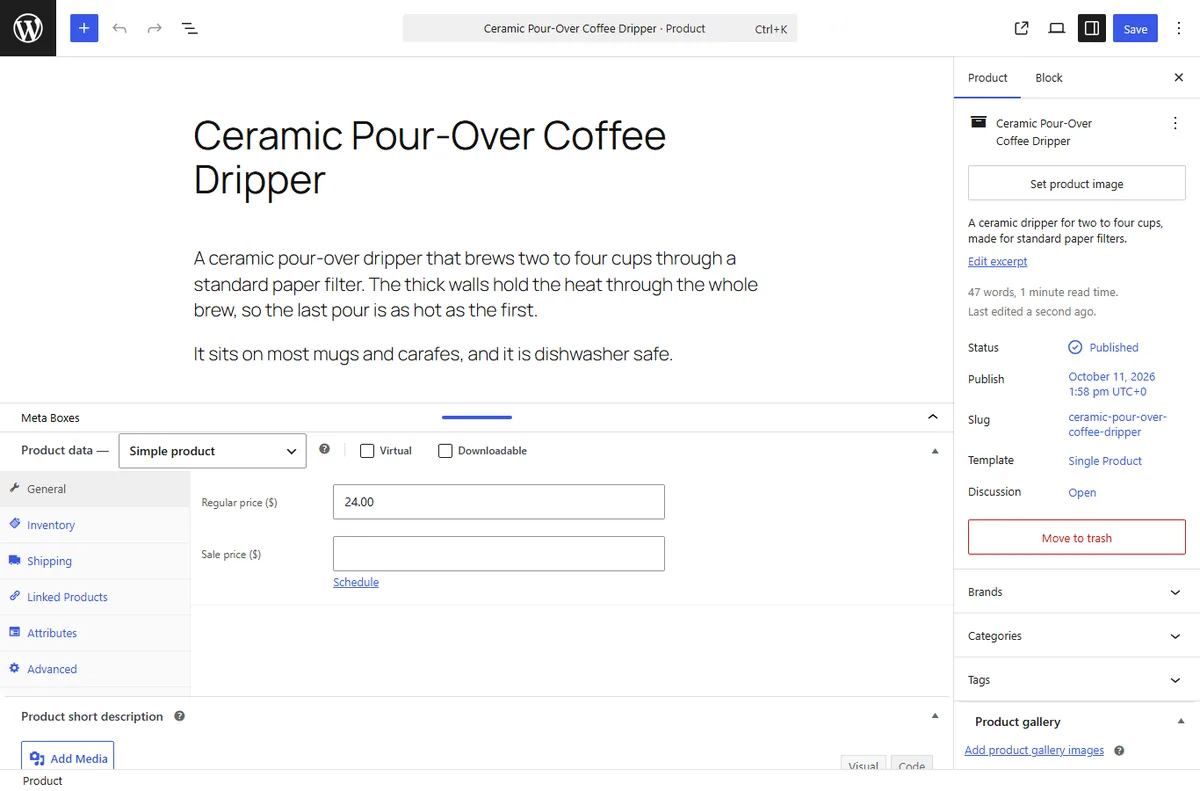
On the test site’s product, three things changed and nothing was lost:
- The existing description became one Classic block. You can leave it like that or convert it to blocks when you next edit the product.
- WooCommerce’s boxes moved, they didn’t go. Product data, the short description and reviews sit in a resizable Meta Boxes pane under the content; the gallery, categories, tags and brands moved to the sidebar.
- The short description shows twice: in its own box and as the excerpt in the sidebar. Saving from the block editor kept it intact.
The same pattern turns up for widgets: WordPress lets you choose the classic or block screen through a filter, which is what the Classic Widgets plugin uses when you clean up the default widget list.
The short version
- WooCommerce disables the block editor for products with a
use_block_editor_for_post_typefilter at priority 10. - One filter returning true for
product, at priority 20, turns it back on, whatever loads first. - At priority 10 it depends on load order: fine from a snippet plugin or a theme, silently ignored from a must-use plugin.
- The REST part of the popular snippet repeats what WooCommerce 10.8.1 already sets.
use_block_editor_for_termisn’t a WordPress filter, and category and tag screens have no block editor.
Frequently Asked Questions
How do I enable the block editor for WooCommerce products?
Add a use_block_editor_for_post_type filter that returns true when the post type is product, at priority 20 so it runs after WooCommerce’s own filter. A snippet plugin, a small plugin or a child theme’s functions.php all work.
Why does WooCommerce disable the block editor for products?
Its product screen is built around classic meta boxes for the product data and the short description, so WooCommerce returns false for products from the same filter. The block editor still shows classic meta boxes, in a panel below the content, so the product data box stays available after the switch.
Can product categories and tags use the block editor?
No. WordPress has no block editor for category or tag edit screens, and the use_block_editor_for_term filter in the popular snippet doesn’t exist in WordPress 7.0.2, so it changes nothing.
Is this the same as WooCommerce’s new product editor?
No. The new product editor is WooCommerce’s own block-based product form, still an experimental beta in WooCommerce 10.8.1 and switched on in its features settings. The filter here opens products in the standard WordPress block editor instead.
Why does my snippet work on one site and not another?
Check the priority. At 10 it ties with WooCommerce’s filter, and the one added last wins, which depends on where the code is loaded. Move it to priority 20.
What happens to existing product descriptions?
They open as a single Classic block, so nothing is lost. You can keep editing them that way or convert them to blocks. Checked on a test product: the description loaded as one Classic block, and a save kept the short description.

