WordPress still registers a dozen legacy widgets, but on a modern site most of the clutter is now blocks. Here is what each method actually removes, tested on a current install.
unregister_widget() for each one on the widgets_init hook. That removes them from the classic Widgets panel and from the Legacy Widget block. On the default, block-based Widgets screen, though, the Calendar, RSS and Tag Cloud you see are blocks, and unregister_widget() leaves them alone; hide those with the allowed_block_types_all filter, scoped to the Widgets editor. A widget-management plugin can do the legacy half from the dashboard.Table of Contents
What the Widgets screen looks like now
Since WordPress 5.8, Appearance → Widgets is a block editor. Two things follow from that, and both surprised us when we tested on a fresh install with a classic theme (Twenty Twenty-One; block themes have no Widgets screen at all):
- The Legacy Widget block already hides most core widgets. WordPress keeps a list of widgets that have a block equivalent (Archives, Calendar, Categories, RSS, Search, Tag Cloud, Text and others) and leaves them out of its dropdown. On our install the dropdown offered just Meta and Navigation Menu.
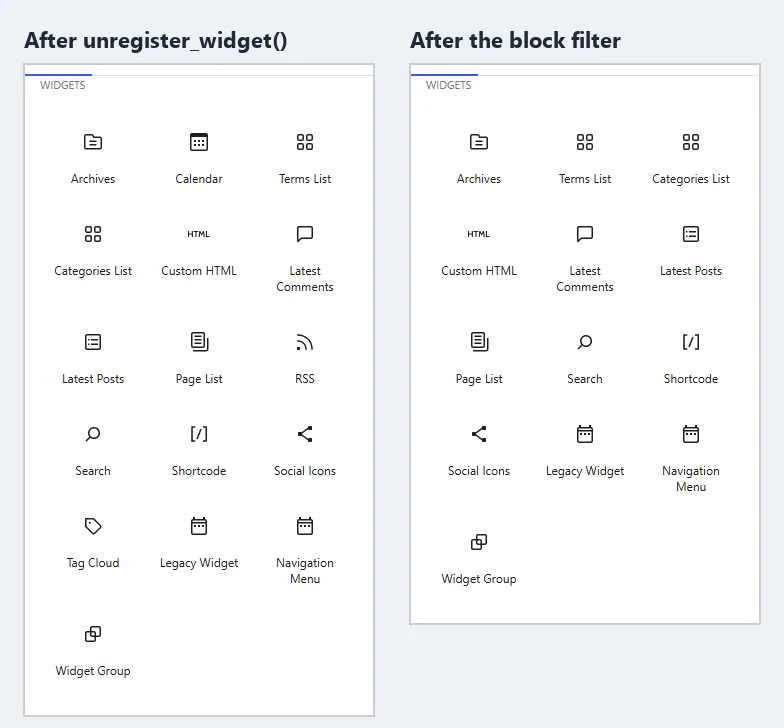
- What you actually see in the inserter’s Widgets group are blocks: Archives, Calendar, RSS, Tag Cloud, Latest Posts and the rest.
The old list of every widget only comes back if you install the official Classic Widgets plugin. Knowing which screen you’re on decides which method works.
Unregistering a widget hides the legacy widget. On the block-based Widgets screen, the block of the same name stays.
Method 1: one snippet for the legacy widgets
The most direct method is to unregister each widget on the widgets_init hook. Add this to a small site plugin or your child theme’s functions.php:
function disable_core_widgets() {
    unregister_widget( 'WP_Widget_Calendar' );
    unregister_widget( 'WP_Widget_Meta' );
    unregister_widget( 'WP_Widget_RSS' );
    unregister_widget( 'WP_Widget_Tag_Cloud' );
}
add_action( 'widgets_init', 'disable_core_widgets' );
Code language: PHP (php)
You do not need priority 11, which a lot of tutorials insist on. WordPress registers its own widgets before it fires widgets_init, and only builds the widget objects later, at priority 100, so the default priority works. We ran the snippet at the default priority with the Classic Widgets panel on: the four widgets disappeared, taking the list from 18 to 14.
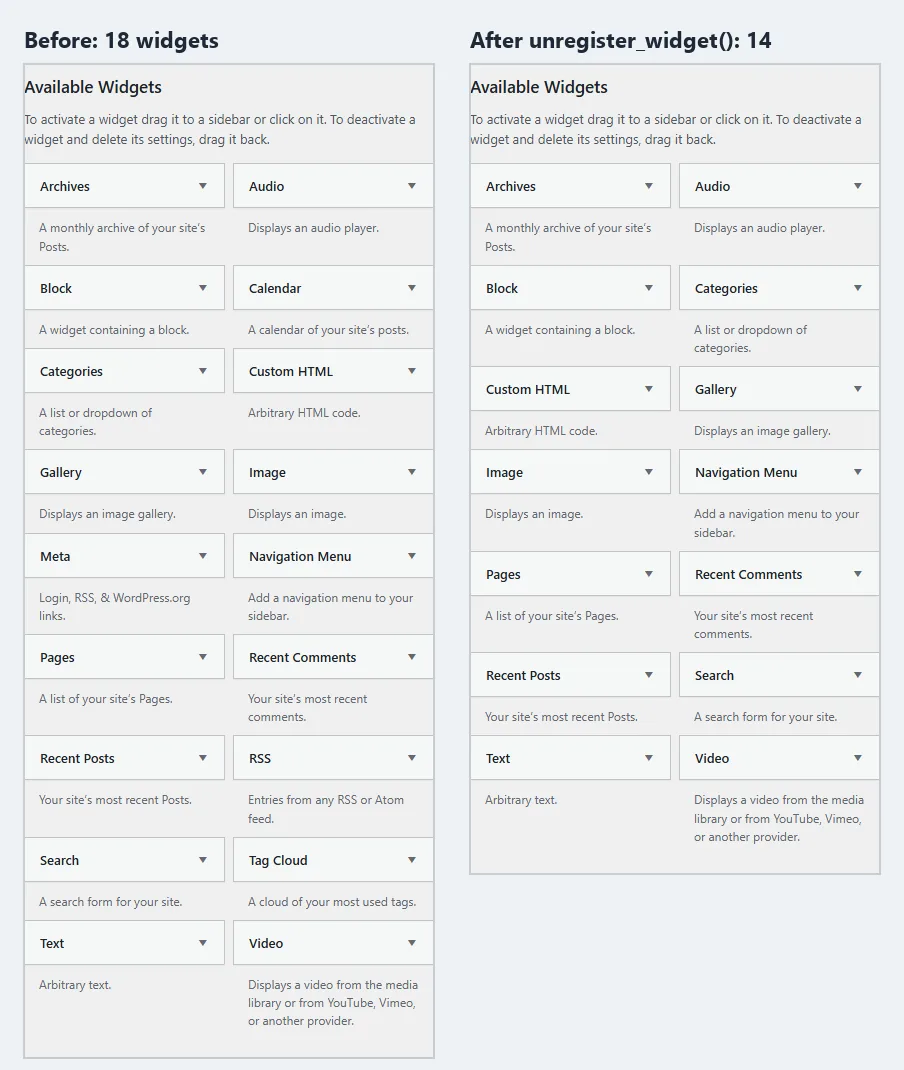
Each widget is a class name (WP_Widget_Pages, WP_Widget_Archives, WP_Widget_Categories, WP_Widget_Recent_Posts, and so on), so you remove exactly the ones you name.
Hiding the block versions too
On the default block-based Widgets screen, that same snippet changes nothing you can see: the Calendar, RSS and Tag Cloud blocks are still in the inserter. To hide them there, filter the allowed blocks for the Widgets editor only:
add_filter( 'allowed_block_types_all', function ( $allowed, $context ) {
    if ( 'core/edit-widgets' !== $context->name ) {
        return $allowed; // posts and pages keep every block
    }
    $all = array_keys( WP_Block_Type_Registry::get_instance()->get_all_registered() );
    // Widget Area and Widget Group exist only in the browser, so add them back explicitly.
    $all = array_merge( $all, array( 'core/widget-area', 'core/widget-group' ) );
    return array_values( array_diff( array_unique( $all ), array( 'core/calendar', 'core/rss', 'core/tag-cloud' ) ) );
}, 10, 2 );
Code language: PHP (php)
The context check matters: without it you would remove those blocks from the post editor as well. With it, our post editor still offered all three blocks while the Widgets screen did not.
Method 2: a plugin, when you’d rather not code
A widget-management plugin gives a non-developer the same switch from the dashboard. We tried Widget Disable (under Appearance → Disable Widgets). It works, but it follows the same rules as WordPress: on the block-based Widgets screen it offered only the two widgets the Legacy Widget block still shows, and the full list of 18 appeared only once Classic Widgets was on. It also has a tab for dashboard widgets, which is a different job.
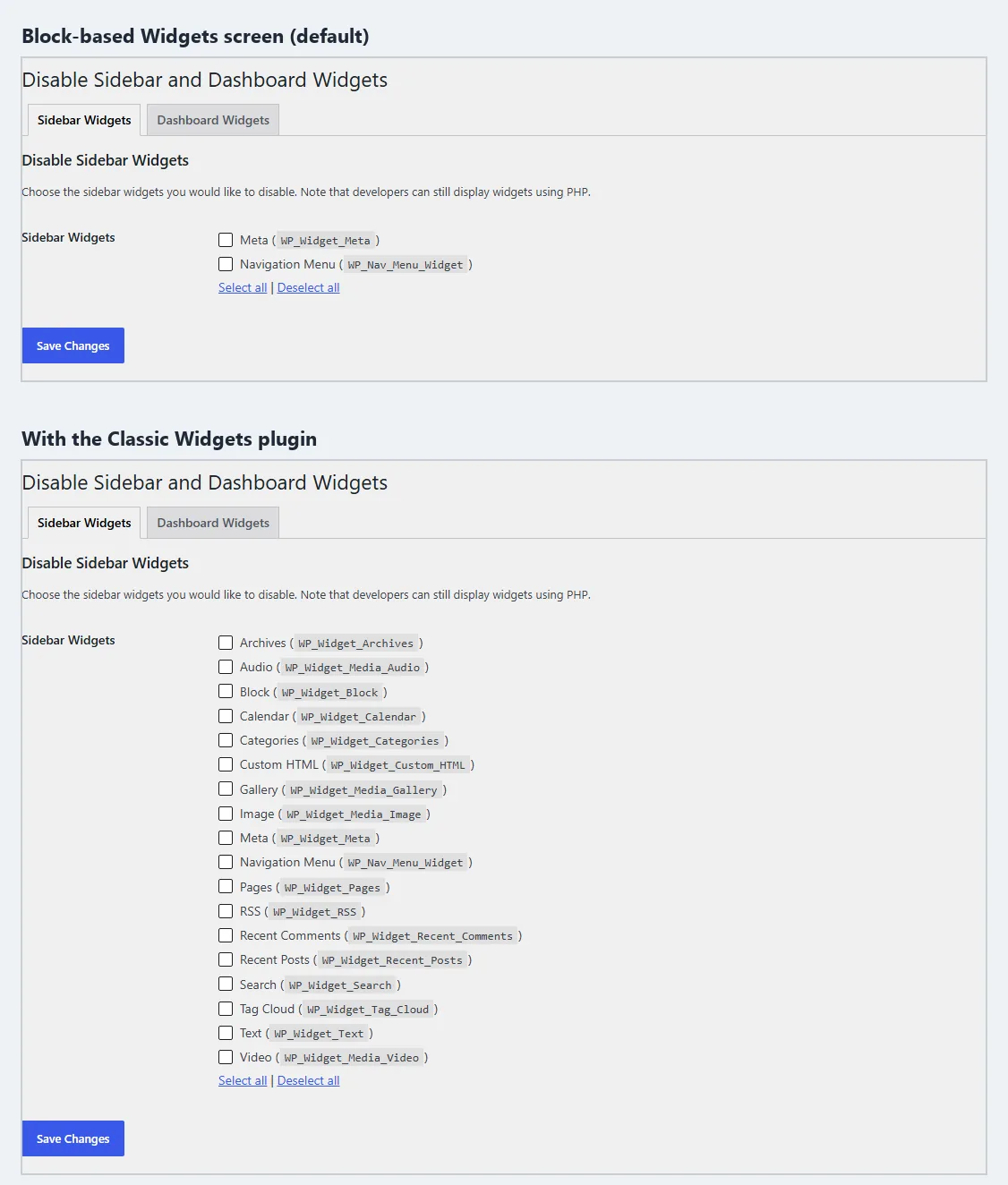
So a plugin is a good fit for a classic-widgets site managed by a non-developer. On a block-widgets site, it won’t touch the blocks.
Code gives you a permanent, reviewable result; a plugin gives a non-developer a safe switch. Pick for who maintains it.
Method 3: whitelist instead of blacklist
If you only want to keep two or three widgets, invert the logic: let core register its widgets, then unregister any that aren’t on your keep-list. You maintain one short array of the classes you want, and every other default widget is removed automatically, so a future WordPress version that adds a new default widget won’t quietly appear in your panel. The same idea works for blocks: return a short allow-list from the allowed_block_types_all filter above instead of subtracting from the full list.
Which method should you use
- The snippet when you use the Classic Widgets panel or want legacy widgets gone for good, in version control.
- The snippet plus the block filter on the default block-based Widgets screen, where the clutter is blocks.
- A plugin when a non-developer manages a classic-widgets site and needs a dashboard toggle.
- A whitelist when you want a small, fixed set and new defaults kept out automatically.
All of them are reversible: remove the code, re-check the box, or add the name back to the keep-list.
The short version
On today’s WordPress, Appearance → Widgets is a block editor. unregister_widget() on widgets_init (default priority is fine) removes legacy widgets from the Classic Widgets panel and the Legacy Widget block, but the Calendar, RSS and Tag Cloud blocks stay; hide those with allowed_block_types_all, scoped to the core/edit-widgets context so the post editor is untouched. Plugins such as Widget Disable follow the same rules, so they suit classic-widgets sites. A keep-list works for both widgets and blocks.
Frequently Asked Questions
Will disabling a widget break my theme’s layout?
No. Unregistering a widget only removes it from the list of available widgets. Any widget already placed in a sidebar keeps rendering as it was; you are hiding options, not editing your live sidebars.
Why does Calendar still show after I unregistered it?
Because what you see is probably the Calendar block. On the block-based Widgets screen, unregister_widget() removes the legacy widget, which WordPress was already hiding from the Legacy Widget block. Use the allowed_block_types_all filter for the Widgets editor to hide the block.
Do I need priority 11 on widgets_init?
No. Core registers its widgets before widgets_init fires and instantiates them later, at priority 100. We tested the snippet at the default priority and it removed all four widgets.
Does disabling default widgets speed up my site?
Barely. Fewer registered widgets means slightly less to load in the admin; front-end speed is essentially unchanged. Treat it as a tidiness and control measure.
What’s the easiest method for a beginner?
On a classic-widgets site, a widget-management plugin with checkboxes. On the default block-based screen, the honest answer is the snippet plus the block filter, because plugins of this kind only reach the legacy widgets.

