Ad blockers are on by default for hundreds of millions of people – which quietly defunds the free sites they read every day. Whitelisting the ones you trust is a thirty-second fix.
Table of Contents
The thirty-second version
Every mainstream ad blocker works the same way: it keeps a per-site rule, and the toolbar icon toggles that rule for the page you’re on. You do not disable the extension globally; you make one exception. Open the site, click the icon, pick the “off for this site” option, reload. Done – and blocking stays on for the rest of the web.
Whitelisting is one exception, not surrender: you keep blocking everywhere except the sites you choose to fund.
Whitelist in the major ad blockers
We tested the three most common Chrome extensions on 2026-10-09, each on the same site, and this is what their popups look like before and after.
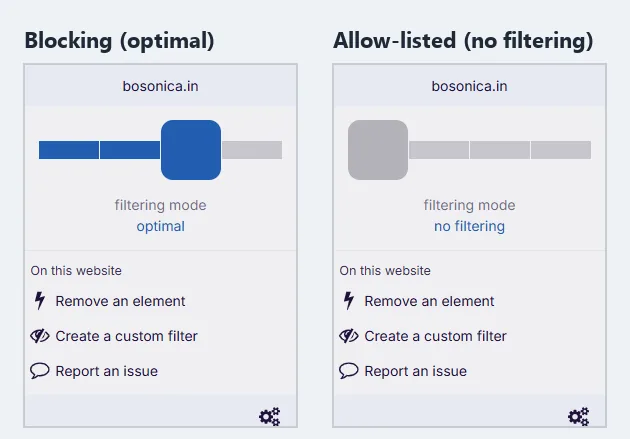
- uBlock Origin Lite (the version Chrome supports now; the original uBlock Origin no longer runs in Chrome). Its popup has no power button. Instead there is a filtering mode slider; drag it all the way left to no filtering for the current site. Moving it back restores blocking. (In Firefox, the original uBlock Origin still works with its big power button.)
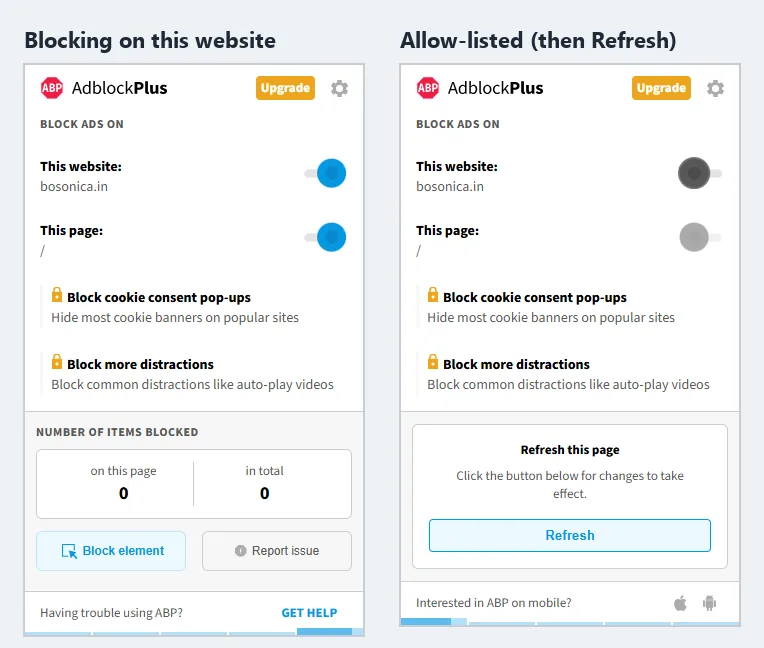
- AdBlock Plus. Under Block ads on, switch off the This website toggle. ABP then shows a Refresh this page prompt; click it so the page reloads without blocking. A second toggle, This page, allows just the current page.
- AdGuard. Click the big switch under the site name; the popup then says Protection is disabled for that site. Don’t use the pause button at the top of the popup: that pauses AdGuard everywhere. In the AdGuard desktop app, add the domain to its exceptions under Settings instead, which covers every browser at once.
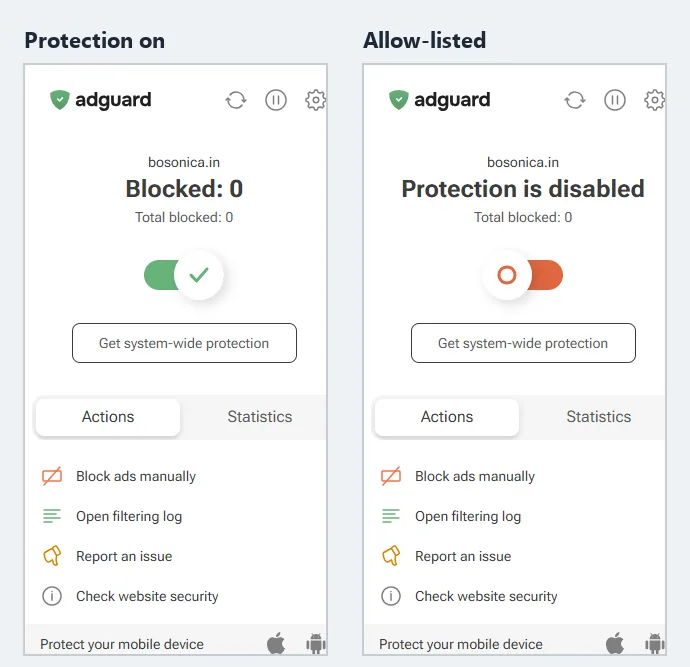
The wording differs, but the shape is identical: a per-site control reached from the toolbar. If you ever want to see or edit every exception at once, each blocker has a “trusted sites” or “allowlist” panel in its dashboard.
Browsers that block ads themselves
Some browsers block ads without an extension, so whitelisting lives in the browser, not an add-on:
- Brave – click the Shields (lion) icon and set Shields to down for the site.
- Microsoft Edge – Tracking Prevention has a per-site “Exceptions” list under Settings > Privacy.
- Opera – open the site’s badge in the address bar and toggle its built-in blocker off.
If ads still don’t appear after whitelisting an extension, a browser-level blocker is the usual second culprit – check there too.
If a site stays blank after you whitelist it, something else is still blocking – a second extension, the browser, or the network.
Blocking that lives on the network
A network-level blocker such as Pi-hole filters DNS for every device in the house, so no per-browser toggle will override it. To whitelist there, open the Pi-hole admin console, add the domain (and any ad or media subdomain it needs) to the allowlist, and let the change propagate. Because it is network-wide, this is also the setting people forget when a site works on their phone’s mobile data but not on home Wi-Fi.
On phones
Mobile whitelisting depends on how the blocking happens. iOS Safari content blockers expose a per-site allowlist through the AA / page-settings menu in the address bar. Android blocking is usually an extension in a browser like Kiwi or a system-wide app such as AdGuard – whitelist it in that tool’s site list, the same way you would on desktop.
When whitelisting doesn’t take
- Ads still missing. Hard-reload (bypass cache), and check for a second blocker – a browser shield or a network filter overriding the extension.
- The site half-works. Some functionality (comments, video, logins) rides on scripts a blocker also strips; whitelisting the whole site, not just its ads, restores them.
- Settings won’t stick. Private/incognito windows often discard exceptions; set the rule in a normal window, and confirm the blocker is allowed to run in private mode if you need it there.
Why whitelisting matters
Most independent sites are free because ads pay for them – the servers, the writing, the upkeep. When a reader blocks everything, they still take the content but stop funding it, and at the scale ad blocking now runs, that gap is what pushes sites toward paywalls, logins, or closing. Whitelisting is the middle path: block the intrusive, malware-adjacent web by default, and make deliberate exceptions for the handful of sites you actually rely on. Many of them participate in the Acceptable Ads standard, which caps what they can show you in return.
Blocking takes the content and skips the check; whitelisting is how you pay for the sites you’d miss.
The short version
Whitelisting a site means adding one per-site exception in whatever does your blocking – the ad-blocker extension (uBlock Origin or its Chrome version uBlock Origin Lite, AdBlock Plus, AdGuard), a browser’s built-in shield (Brave, Edge, Opera), or a network filter (Pi-hole). Click the icon, turn blocking off for that site, reload. If ads still don’t show, look for a second blocker in a different layer. Keep blocking on everywhere else – and whitelist the free sites you’d rather not lose, because their ads are how they stay free.
Frequently Asked Questions
Will whitelisting one site slow down my browsing?
No. A whitelist rule applies only to the site you name; every other site is still filtered exactly as before. If anything, whitelisting can make a trusted site load more smoothly, because the blocker is no longer fighting scripts the page needs.
Can I whitelist a single page instead of the whole site?
Most extensions whitelist by domain, not by page, so the exception covers the entire site. A few offer element-level or path rules in their advanced dashboard, but for keeping a site funded and functional, the per-domain switch is what you want.
What’s the difference between whitelisting and turning my ad blocker off?
Whitelisting disables blocking for one site and leaves it on everywhere else; turning the blocker off drops your protection across the whole web. Always prefer the per-site exception – you keep the default shield and make one deliberate hole in it.
Could whitelisting a site expose me to malware?
Only whitelist sites you trust, because you are allowing their ads to load. Reputable sites vet their ad partners and often follow the Acceptable Ads rules, which forbid the most abusive formats. If a site you’ve whitelisted suddenly shows aggressive or deceptive ads, remove the exception.
Why did a site keep failing even after I whitelisted it?
Because blocking happens in layers. An exception in your extension won’t help if a browser shield or a network-level filter like Pi-hole is still active. Whitelist the site in every layer that’s doing the blocking, then hard-reload.

