The form said “Thank you for your message. It has been sent.” It had been. Straight into the spam folder.
wordpress@ your domain through PHP’s mail function, from the web server, with nothing that proves your domain sent them. Gmail checks SPF, DKIM and DMARC for the address in the From line, finds no pass, and files the message as suspect. The fix is to send through a real mailbox on your domain, with a login. An SMTP plugin such as FluentSMTP does that from a settings screen: point it at your mail provider’s SMTP server, make that mailbox the forced From address, send a test, and read the headers until all three checks pass.Table of Contents
The symptom: Contact Form 7 emails going to spam after “sent”
On the test site, a visitor-style test of the contact form went through without an error. The form showed its green “sent” message, and the notification arrived, in Gmail’s spam folder. Nothing on the WordPress side looked wrong, which is the point: the form’s success message only means WordPress handed the email over. Where it lands is decided later, by the receiving server. It is the same gap as trusting a success message instead of checking the result.
Step 1: read the headers before changing anything
Open the message and look at what the receiving server decided. In Gmail that’s the three-dot menu, then Show original: the top of the page lists SPF, DKIM and DMARC with a verdict for each. Summarised, with the domain replaced by example.com:
From:   wordpress@example.com
SPF:    no pass for example.com (the message came from the web server)
DKIM:   no signature for example.com
DMARC:  failCode language: CSS (css)
DMARC is the one that decides. It asks whether SPF or DKIM passed for the domain in the From line. Neither did, so nothing connected the message to example.com, and a message claiming to be from a domain that can’t vouch for it is exactly what a spam filter exists to catch.
The form worked. The email just couldn’t prove where it came from.
Why Contact Form 7 sends it that way
Two defaults stack up:
- Contact Form 7’s sender. A new form’s Mail tab fills the From field with
[_site_title] <wordpress@your domain>. Nobody created that mailbox, and nobody needs to for it to be used. - WordPress’s transport. Every WordPress email, including the form’s, goes out through PHP’s mail function. The message leaves from the web server or whatever relay the host puts behind it, not from your mail provider, so it carries none of your provider’s signatures.
Neither is a bug. Both assume the server is allowed to send for your domain, and on most hosting it isn’t.
Step 2: give the site a mailbox of its own
Create a mailbox on your domain at your mail provider, for example noreply@example.com. It only needs to send; the form’s replies go to the visitor anyway (see step 5). Note its SMTP settings from the provider’s help page: the server name, the port and the encryption. Most providers offer port 465 with SSL, or port 587 with TLS.
Before going further, check that your domain’s DNS already has the provider’s mail records: an SPF record that includes the provider, and its DKIM records. Most providers add them, or list them for you to add, when the mail service is set up.
Step 3: connect FluentSMTP to that mailbox
Install and activate FluentSMTP, then open Settings > FluentSMTP and add a connection. For a regular mailbox, choose Other SMTP and fill in:
- From Email: the new mailbox,
noreply@example.com. Tick Force From Email, so every email the site sends uses it, the form’swordpress@sender included. - Set the return-path to match the From Email: on. The return path (the envelope sender) is what SPF is checked against, so it should be the same mailbox.
- From Name: the site’s name, as readers should see it.
- SMTP Host, Port, Encryption: from your provider’s help page. FluentSMTP’s own hint is the right one: SSL on port 465, TLS on 25 or 587.
- Authentication: on. SMTP Username: the full mailbox address. SMTP Password: the mailbox’s password.
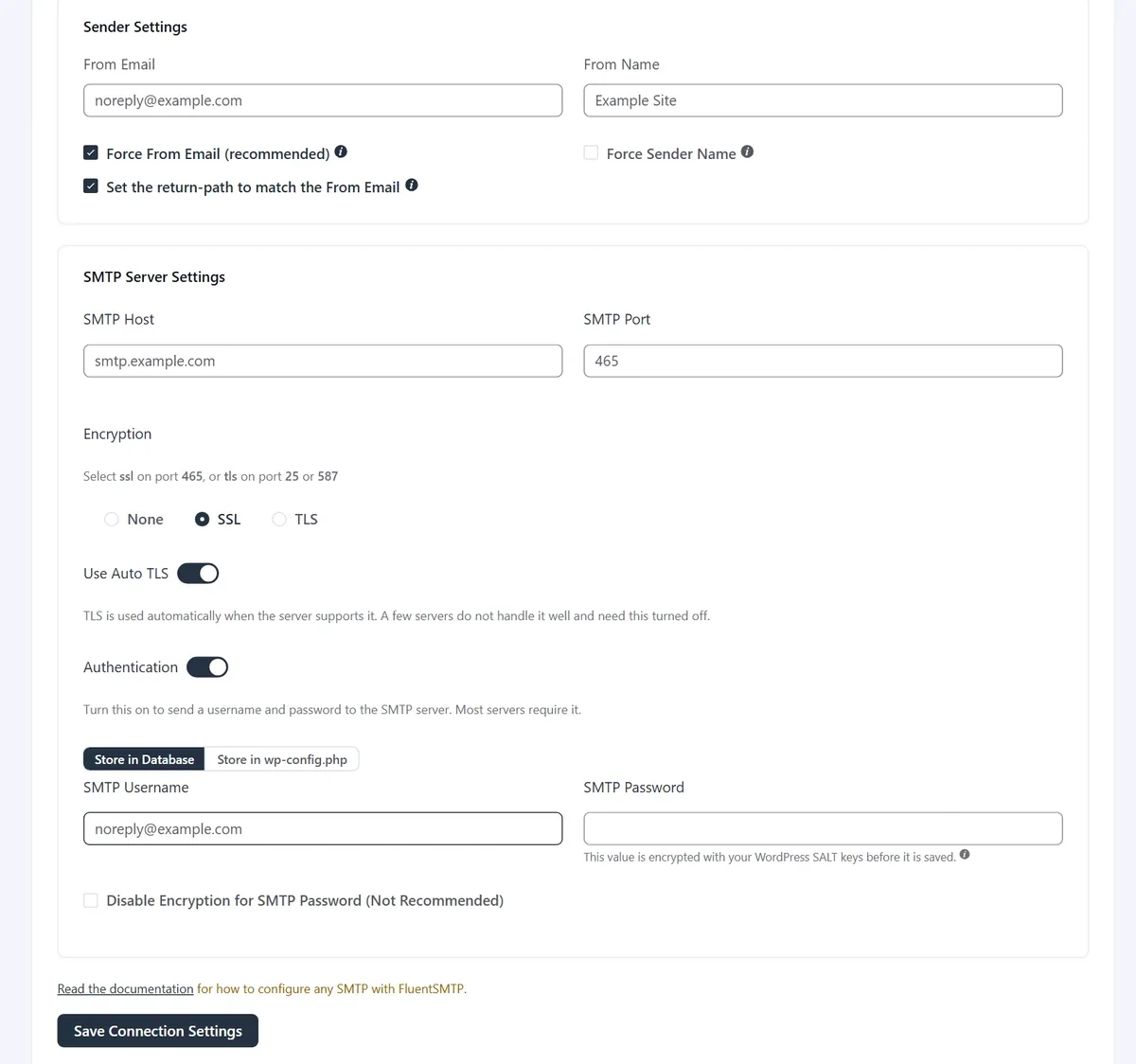
Then Save Connection Settings. A saved connection appears under Active Email Connections; if the page goes back to “Set up your first email connection”, the save didn’t go through, so check the fields and save again.
Step 4: “SMTP Error: Could not authenticate”
The first two test sends on the test site failed. This is where the plugin earns its place: FluentSMTP keeps a log of every email, and the failed ones are listed with the reason. Its Email Logs screen showed:
Status:          Failed
Why it failed:   SMTP Error: Could not authenticate.
Server response: code 422Code language: JavaScript (javascript)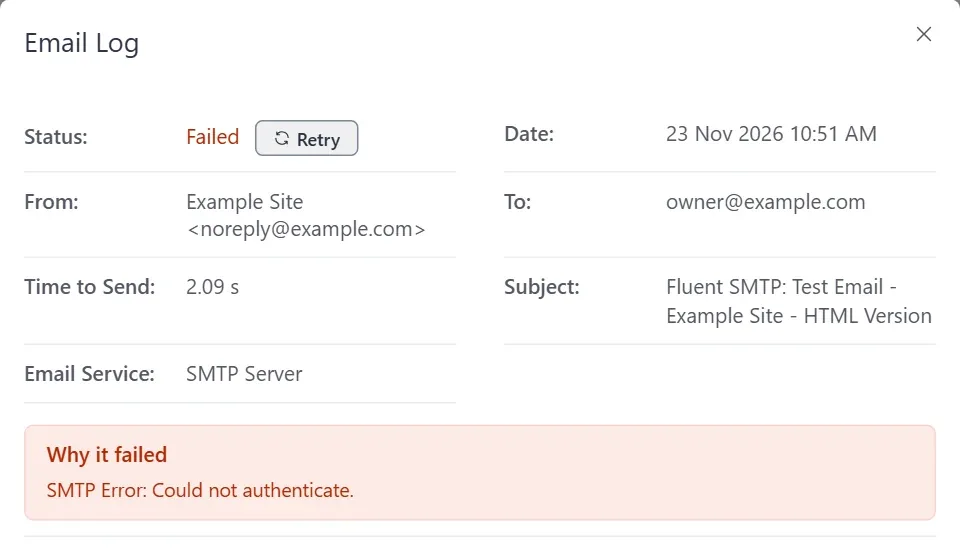
“Could not authenticate” means the mail server rejected the username or the password. Here it was the password: the saved value wasn’t the mailbox’s. Two things are worth ruling out:
- The username must be the full address,
noreply@example.com, not justnoreply. - A browser can fill a saved password into the field. Clear the field and type the mailbox password by hand before saving. If in doubt, log in to the provider’s webmail with it first, or reset it there.
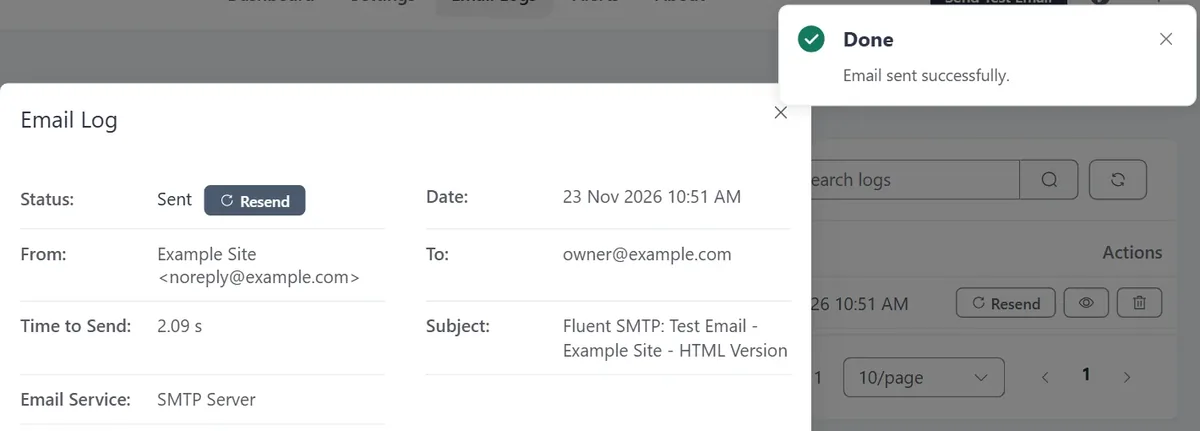
Once the password was right, the Retry button on the failed entry sent it again and answered “Email sent successfully.” No diagnostic code to add and remove, which is the main thing a plugin gives you over a few lines of code.
While the form can’t send, visitors who use it get Contact Form 7’s error message, “There was an error trying to send your message.” Fix the login before leaving it, or switch the plugin off so the site falls back to its old way of sending until you can.
Step 5: point the form at the new mailbox
In Contact Form 7, open the form’s Mail tab and change the From field to the same mailbox, for example Example Site <noreply@example.com>. FluentSMTP’s Force From Email already rewrites it, but the form’s own settings should say the same thing, so the setup still holds if that option is ever switched off.
Leave Additional headers with Reply-To: [your-email]. That keeps replies going to the visitor who wrote in, while the message itself comes from your mailbox.
Step 6: prove it with a real message
Submit the form once more, logged out, from a private window, and open the notification’s Show original again. On the test site:
From:   noreply@example.com
SPF:    pass, for noreply@example.com
DKIM:   pass, signed for example.com
DMARC:  passCode language: CSS (css)
The DKIM signature appears on its own: the mail provider signs mail sent through its servers with your domain’s key, something it couldn’t do while WordPress went around it.
A success message is the server’s opinion. The headers are the receiver’s verdict.
If your provider shows a warning that the domain “isn’t verified” or “isn’t fully connected”, that’s usually a separate ownership check, done with a TXT record in DNS. On the test site, sending worked before that record existed, and it was added afterwards to clear the warning. It isn’t the cause of a spam-folder problem, but don’t leave it pending.
Step 7: then make DMARC stricter
A domain’s DMARC policy tells receivers what to do with mail that fails: p=none delivers it anyway and only reports, p=quarantine sends it to spam. Tighten it only once every system that sends as your domain, this form included, passes. Done in the other order, a strict policy sends your own website’s mail to spam on your own instructions. Google’s sender guidelines and the DMARC overview at dmarc.org cover the policy side.
Where FluentSMTP keeps the password
By default the password is stored in the WordPress database, encrypted with the security keys in wp-config.php (FluentSMTP says so under the field). A copy of the database alone doesn’t reveal it. Two things follow:
- If those security keys are ever changed, the stored password can no longer be decrypted and sending stops. Re-enter the SMTP password straight after any key change.
- The alternative is
wp-config.php. FluentSMTP’s “Store in wp-config.php” option reads the login from two constants,FLUENTMAIL_SMTP_USERNAMEandFLUENTMAIL_SMTP_PASSWORD. That keeps the password out of the database, but you then edit a file on the server whenever it changes, and a full backup still carries it.
For a single site either works. The database option is simpler to manage from the dashboard.
On a multisite network the two options behave differently, because the database settings belong to each site and wp-config.php belongs to the whole network:
- Database storage is per site. Each site in the network has its own FluentSMTP screen under its own Settings menu, its own connection and its own email log. A site you haven’t set up still sends through the server’s default mail, so check every site that has a form, not just the main one.
- FluentSMTP’s
wp-config.phpoption doesn’t work for sites with their own mailboxes. The limit is the plugin’s, not the file’s:wp-config.phpcan hold any number of passwords as long as each has its own name, and a hand-written mail setup can read a differently named constant for each site. FluentSMTP’s names are fixed, though, and a network has onewp-config.php, so it holds oneFLUENTMAIL_SMTP_USERNAMEand oneFLUENTMAIL_SMTP_PASSWORD. If two sites send from different addresses, such assupport@on one andnoreply@on another, their logins collide. The only way round it is anifinwp-config.phpthat picks the password by site address, which is fragile. Andwp-config.phpsits on the server, outside the dashboard: a site’s own administrator on a network usually can’t open it, so only the network owner could set or change that site’s password. On a multisite, keep each site’s login in the database. Thewp-config.phpoption fits only when every site sends from the same mailbox and the network owner manages it. - The encryption keys are shared too. Changing the security keys in
wp-config.phpbreaks the stored password on every site at once, so re-enter it on each one.
The short version
- Contact Form 7 emails go to spam because they’re sent as
wordpress@your domain from the web server, so SPF, DKIM and DMARC can’t pass for your domain. - Read the headers first (Gmail: Show original), so you know what’s failing before you change anything.
- Send through a mailbox on your own domain: FluentSMTP’s Other SMTP connection, Force From Email, the matching return path.
- “Could not authenticate” is the login: full address as the username, the password typed by hand, then Retry from the log.
- Prove it with a real message’s headers, and only then make DMARC stricter.
Frequently Asked Questions
Do I need a paid email service, or is my domain’s mailbox enough?
A regular mailbox on your domain is enough for a contact form’s volume. Transactional services (sending through an API) matter when a site sends thousands of emails, such as shop orders or newsletters. FluentSMTP supports both, so you can start with the mailbox and switch the connection later.
Will the form’s replies come from noreply?
No. The notification is sent from your mailbox, but the Reply-To: [your-email] header in the form’s Mail tab makes your reply go to the visitor’s address. Keep that line when you change the From field.
Does FluentSMTP fix emails WordPress sends outside the form?
Yes. It changes how WordPress sends every email, not just Contact Form 7’s: password resets, new-user notices and plugin alerts all go through the same connection, and all of them appear in its log.

