Changing the login logo is the well-known fix. The WordPress mark also sits in the toolbar, the login popup, every tab title and the admin footer, and on a multisite network each site should show its own icon, not one shared logo.
get_site_icon_url(), send the logo link to the site’s home page, remove the toolbar’s wp-logo menu at priority 11 and add the icon in its place, then drop “WordPress” from the tab titles and footer. On multisite, fall back to the main site’s icon when a site has none, and install the code once for the whole network.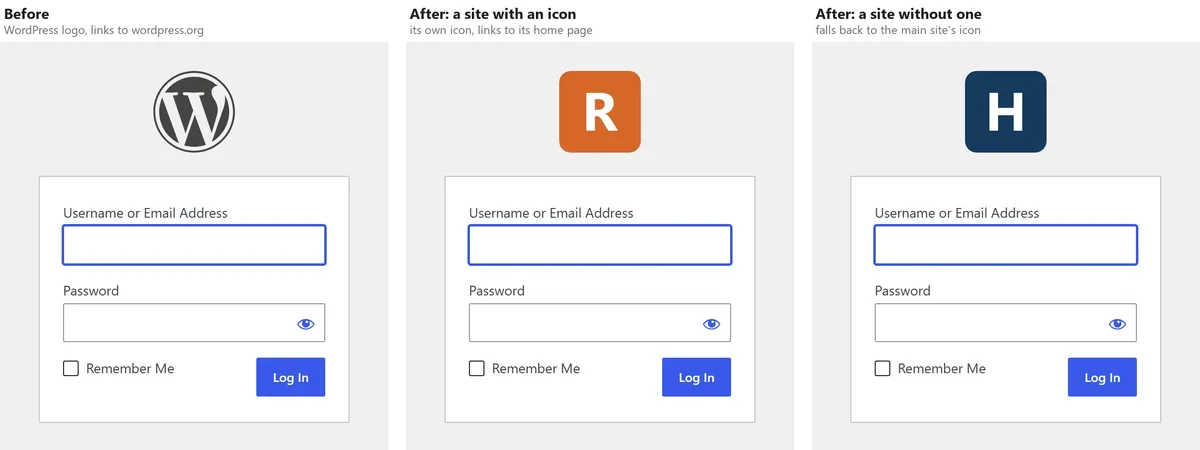
Table of Contents
Where the WordPress logo still shows
Most guides stop at the login page. On a fresh test multisite with three sites, the WordPress name and logo showed up in all of these places, on every site:
| Place | What a visitor or editor sees | Where it comes from |
|---|---|---|
| Login page | The WordPress “W” above the form, linking to wordpress.org, with the text “Powered by WordPress” | core login styles plus the login_headerurl and login_headertext filters |
| Login popup | The same “W” in the box that appears when a session expires inside the dashboard | the same login page, loaded in a frame (wp-login.php?interim-login=1) |
| Toolbar | The “W” menu: About WordPress, Get Involved, WordPress.org, Documentation, Learn WordPress, Support, Feedback | the wp-logo toolbar node and its children |
| Browser tab | “Log In ‹ Harbor Recipes — WordPress”, “Dashboard ‹ Harbor Recipes — WordPress” | the login_title and admin_title filters |
| Admin footer | “Thank you for creating with WordPress.” on the left, the version (or “Get Version 7.1.3”) on the right | the admin_footer_text and update_footer filters |
| Dashboard | The “WordPress Events and News” box | the dashboard_primary widget |
The login popup is easy to miss. It is the same login page shown in a frame, so the login-page fix covers it, and the same goes for the toolbar on the front end of the site: one toolbar fix covers both.
Why the Site Icon is the right replacement
Every site already has a place for its own mark: Settings > General > Site Icon, the square image WordPress uses as the browser favicon and the app icon (WordPress documentation). get_site_icon_url() returns it at the size you ask for, and it takes a site ID, so code running on one site can read another site’s icon.
That makes one rule work for a whole network. Each site shows its own icon, and a site that hasn’t set one yet shows the main site’s. Hard-coding one logo file would put the same brand on every subsite, which is wrong the moment two sites belong to different brands.
One rule, every site: the logo is whatever each site already uses as its icon.
function sib_icon_url( $size ) {
	$url = get_site_icon_url( $size );
	if ( ! $url && is_multisite() ) {
		$url = get_site_icon_url( $size, '', get_main_site_id() );
	}
	return $url;
}
Code language: PHP (php)
Step 1: Replace the logo on the login page and its popup
The login logo is a background image on the h1 a link above the form, so a small stylesheet on the login_enqueue_scripts hook replaces it. Two filters fix the rest: login_headerurl sends the click to the site’s home page instead of wordpress.org, and login_headertext replaces “Powered by WordPress” with the site name, which is what screen readers announce.
add_action( 'login_enqueue_scripts', function () {
	$icon = sib_icon_url( 192 );
	if ( ! $icon ) {
		return;
	}
	printf(
		'<style>body.login div#login h1 a{background-image:url(%s);background-size:contain;background-position:center;width:84px;height:84px;border-radius:12px}</style>',
		esc_url( $icon )
	);
} );
add_filter( 'login_headerurl', function () {
	return home_url( '/' );
} );
add_filter( 'login_headertext', function () {
	return get_bloginfo( 'name', 'display' );
} );
Code language: PHP (php)
On the test network, the subsite’s login page then showed its own orange icon, linked to the subsite’s home page (https://example.com/alpha/) and read “Harbor Recipes”. The subsite with no icon showed the main site’s navy one. Fetching the popup’s address directly (wp-login.php?interim-login=1) returned the same icon, so nothing extra is needed for the popup.
Step 2: Swap the toolbar’s WordPress menu for the site icon
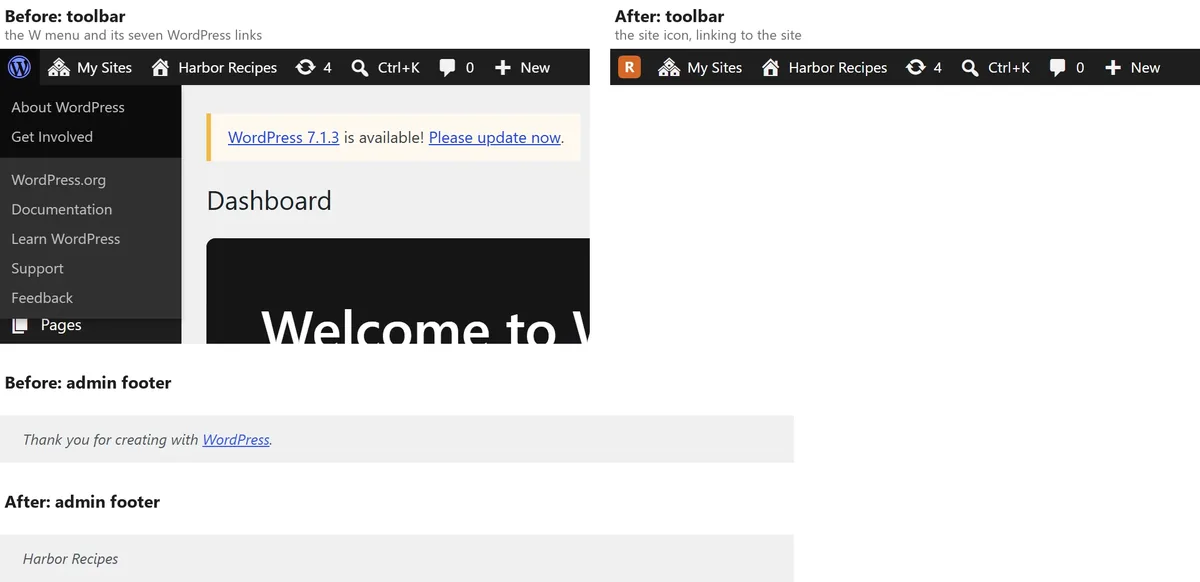
Core builds the “W” menu in wp_admin_bar_wp_menu(), hooked to admin_bar_menu at priority 10. Remove it at priority 11, after it exists: at the default priority your code may run first and find nothing to remove. Remove the child items too, then add a node with the icon in the same spot.
add_action( 'admin_bar_menu', function ( $bar ) {
	foreach ( $bar->get_nodes() as $node ) {
		if ( in_array( $node->parent, array( 'wp-logo', 'wp-logo-external' ), true ) ) {
			$bar->remove_node( $node->id );
		}
	}
	$bar->remove_node( 'wp-logo-external' );
	$bar->remove_node( 'wp-logo' );

	$icon = sib_icon_url( 64 );
	if ( ! $icon ) {
		return;
	}
	$name = get_bloginfo( 'name', 'display' );
	$bar->add_node( array(
		'id'    => 'site-icon-brand',
		'title' => sprintf( '<img src="%s" alt=""><span class="screen-reader-text">%s</span>', esc_url( $icon ), esc_html( $name ) ),
		'href'  => home_url( '/' ),
		'meta'  => array( 'title' => $name ),
	) );
}, 11 );
Code language: PHP (php)
The icon needs a few lines of CSS to sit at toolbar size (20 px, 28 px on phones). They are in the complete code below. The “My Sites” menu that network admins use is untouched.
Step 3: Drop “WordPress” from tab titles and the admin footer
Every login and admin tab title ends with ” — WordPress”. The filters receive the finished title, so removing that suffix is a single string replacement:
$sib_title = function ( $title ) {
	return str_replace( ' — WordPress', '', $title );
};
add_filter( 'login_title', $sib_title );
add_filter( 'admin_title', $sib_title );
Code language: PHP (php)
The footer has two halves. admin_footer_text replaces “Thank you for creating with WordPress.” with the site name. update_footer controls the version on the right. Keep it for people who can update WordPress, since that is where they spot a pending update, and hide it for everyone else:
add_filter( 'admin_footer_text', function () {
	return '<span id="footer-thankyou">' . esc_html( get_bloginfo( 'name', 'display' ) ) . '</span>';
} );
add_filter( 'update_footer', function ( $text ) {
	return current_user_can( 'update_core' ) ? $text : '';
}, 11 );
Code language: PHP (php)| Check on the test network | Before | After |
|---|---|---|
| Login tab title | Log In ‹ Harbor Recipes — WordPress | Log In ‹ Harbor Recipes |
| Dashboard tab title | Dashboard ‹ Harbor Recipes — WordPress | Dashboard ‹ Harbor Recipes |
| Footer, left | Thank you for creating with WordPress. | Harbor Recipes |
| Footer, right, as a network admin | Get Version 7.1.3 | Get Version 7.1.3 |
| Footer, right, as an editor | the version | empty |
Step 4: Remove the Events and News box
The “WordPress Events and News” box on the dashboard lists WordPress meetups and news. On a client or company site it is noise. Remove it from the site dashboards and, on multisite, from the network dashboard:
add_action( 'wp_dashboard_setup', function () {
	remove_meta_box( 'dashboard_primary', 'dashboard', 'side' );
}, 99 );
add_action( 'wp_network_dashboard_setup', function () {
	remove_meta_box( 'dashboard_primary', 'dashboard-network', 'side' );
}, 99 );
Code language: PHP (php)
Step 5: Install it once for the whole network
The code has to run on every site, including the login page, which loads before any theme code that only runs on the front end. Two places do that:
- A must-use plugin. Save the file in
wp-content/mu-plugins/. Must-use plugins load on every site of a network and cannot be switched off from the dashboard by accident (WordPress documentation). This is what the test network used. - A code-snippets plugin, activated network-wide. Easier to edit later, and you can switch it off without file access. Whether a snippet or a plugin is the better home for a change like this is covered in when to replace a plugin with a code snippet.
Avoid the active theme’s functions.php: on a network, each site may use a different theme, and the next theme switch takes your branding with it. If you manage plugins network-wide, the same caution about what runs where applies as in deleting a plugin on multisite.
Put branding where every site loads it, not in a theme that the next redesign replaces.
Check that it worked
Run these checks on the main site and on one subsite:
- [ ] Signed out, open
/wp-login.php: the site’s icon, a link to the site’s home page, and no “WordPress” in the tab title. - [ ] On a site with no Site Icon: the main site’s icon (or no logo at all on a single site without one).
- [ ] Signed in, any admin screen: no “W” at the left of the toolbar, the icon in its place, and the footer showing the site name.
- [ ] As an editor (not an administrator): no version number in the footer.
- [ ] The dashboard: no Events and News box.
Login pages and admin screens are usually excluded from page caching, so the change shows on the next load. If the login page still shows the old logo, clear the browser cache: the core stylesheet with the W is cached hard.
The complete code (free download)
Copy this into wp-content/mu-plugins/site-icon-branding.php, or paste everything below the header comment into a code-snippets plugin and activate it network-wide. It is MIT-licensed: use it, change it, ship it.
<?php
/**
* Plugin Name: Site icon branding (login + admin)
* Description: Replaces the WordPress logo on the login page, the login popup and the admin toolbar with each
* site's own Site Icon, and drops "WordPress" from tab titles, the admin footer and the dashboard.
* On a multisite network, a site without an icon uses the main site's icon.
* Version: 1.0
* License: MIT
*
* Copyright (c) 2026. Permission is hereby granted, free of charge, to any person obtaining a copy of this
* software, to deal in it without restriction, including the rights to use, copy, modify, merge, publish,
* distribute, sublicense and/or sell copies, subject to keeping this notice. THE SOFTWARE IS PROVIDED "AS IS",
* WITHOUT WARRANTY OF ANY KIND.
*
* Install: save as wp-content/mu-plugins/site-icon-branding.php (runs on every site of a network), or paste the
* code below the header into a code-snippets plugin and activate it network-wide.
* Set each site's icon in Settings > General > Site Icon.
*/
if ( ! function_exists( 'sib_icon_url' ) ) {
function sib_icon_url( $size ) {
$url = get_site_icon_url( $size );
if ( ! $url && is_multisite() ) {
$url = get_site_icon_url( $size, '', get_main_site_id() );
}
return $url;
}
}
// Login page, and the popup shown when a session expires (the same page in a frame).
add_action( 'login_enqueue_scripts', function () {
$icon = sib_icon_url( 192 );
if ( ! $icon ) {
return;
}
printf(
'<style>body.login div#login h1 a{background-image:url(%s);background-size:contain;background-position:center;width:84px;height:84px;border-radius:12px}</style>',
esc_url( $icon )
);
} );
add_filter( 'login_headerurl', function () {
return home_url( '/' );
} );
add_filter( 'login_headertext', function () {
return get_bloginfo( 'name', 'display' );
} );
// Browser tab titles: "Log In ‹ Site — WordPress", "Dashboard ‹ Site — WordPress".
$sib_title = function ( $title ) {
return str_replace( ' — WordPress', '', $title );
};
add_filter( 'login_title', $sib_title );
add_filter( 'admin_title', $sib_title );
// Toolbar: core adds the WordPress menu at admin_bar_menu priority 10, so replace it at 11.
add_action( 'admin_bar_menu', function ( $bar ) {
foreach ( $bar->get_nodes() as $node ) {
if ( in_array( $node->parent, array( 'wp-logo', 'wp-logo-external' ), true ) ) {
$bar->remove_node( $node->id );
}
}
$bar->remove_node( 'wp-logo-external' );
$bar->remove_node( 'wp-logo' );
$icon = sib_icon_url( 64 );
if ( ! $icon ) {
return;
}
$name = get_bloginfo( 'name', 'display' );
$bar->add_node( array(
'id' => 'site-icon-brand',
'title' => sprintf( '<img src="%s" alt=""><span class="screen-reader-text">%s</span>', esc_url( $icon ), esc_html( $name ) ),
'href' => home_url( '/' ),
'meta' => array( 'title' => $name ),
) );
}, 11 );
$sib_bar_css = function () {
wp_add_inline_style( 'admin-bar',
'#wpadminbar #wp-admin-bar-site-icon-brand img{width:20px;height:20px;border-radius:4px;vertical-align:middle;margin-top:-3px}'
. '@media screen and (max-width:782px){#wpadminbar li#wp-admin-bar-site-icon-brand{display:block}'
. '#wpadminbar #wp-admin-bar-site-icon-brand>.ab-item{padding:0 10px}'
. '#wpadminbar #wp-admin-bar-site-icon-brand img{width:28px;height:28px;margin-top:-2px}}'
);
};
add_action( 'admin_enqueue_scripts', $sib_bar_css );
add_action( 'wp_enqueue_scripts', $sib_bar_css );
// Admin footer: the site name instead of "Thank you for creating with WordPress."; the version only for people
// who can update WordPress.
add_filter( 'admin_footer_text', function () {
return '<span id="footer-thankyou">' . esc_html( get_bloginfo( 'name', 'display' ) ) . '</span>';
} );
add_filter( 'update_footer', function ( $text ) {
return current_user_can( 'update_core' ) ? $text : '';
}, 11 );
// Dashboard: the "WordPress Events and News" box, on site and network dashboards.
add_action( 'wp_dashboard_setup', function () {
remove_meta_box( 'dashboard_primary', 'dashboard', 'side' );
}, 99 );
add_action( 'wp_network_dashboard_setup', function () {
remove_meta_box( 'dashboard_primary', 'dashboard-network', 'side' );
}, 99 );
Code language: PHP (php)The login popup and the front-end toolbar need no extra code: they reuse the pieces you already replaced.
The short version
The WordPress logo appears on the login page, the session-expired popup, the toolbar, every tab title, the admin footer and the dashboard. A single must-use plugin (or a network-activated snippet) replaces all of it with each site’s own Site Icon, falls back to the main site’s icon on a network, keeps the version number for people who update WordPress, and needs nothing extra for the popup or the front-end toolbar.
Frequently Asked Questions
Will a WordPress update undo this?
No. The code only uses filters and actions that core provides for exactly this, and updates never touch wp-content/mu-plugins/ or a snippets plugin’s code. The one thing to watch is the toolbar node name, wp-logo, which has been stable for many years; if a future version renamed it, the “W” would come back and nothing would break.
Can I show a wide logo on the login page instead of a square icon?
Yes. Replace the icon URL in the login stylesheet with your logo’s URL and set the width and height to the logo’s proportions, for example 240 by 80 pixels. On a network, a per-site wordmark needs a per-site setting (or a file named after each site), which is why a square Site Icon is the simpler rule: every site already has the setting.
Does this change the favicon?
No. The Site Icon already is the favicon. This code only reuses that image in the places that still showed the WordPress logo.

