You changed the SMTP settings, or copied a live site to staging, and you need to know whether mail works. Every test you can think of either lands in a real inbox or, on a copy of a live site, could reach a real customer.
Table of Contents
The symptom: no safe way to test WordPress SMTP
SMTP is the protocol a site uses to hand mail to a mail server with a username and password, instead of PHP’s built-in mail(). When you set it up, or debug it, you need test sends. Three things make that awkward:
- A real test reaches a real inbox. Fine once; tiresome when you are flipping settings twenty times.
- A staging copy carries live data. A database copy brings real customer and user addresses, and it brings the SMTP plugin’s settings too, so a copy can send password resets or order emails through the live mailbox.
- Failures are hard to reproduce on purpose. “SMTP Error: Could not authenticate.” is the most common SMTP failure, and you want to see how your site behaves when it happens: what the admin sees, what gets logged, whether a form still says “sent”.
A local test server fixes all three. It is a stand-in for the mail provider that you control completely.
127.0.0.1:2525, Python stdlib only. Every message is discarded.
phpmailer_init or a plugin's SMTP fields. Encryption off for the test.
refuse file present: Could not authenticate. wp_mail = false.
Delete the file: wp_mail = true, "delivered", yet discarded.
Provider's host, port, encryption. One message to your own mailbox.
The test server proves the WordPress side only: it ignores the password, offers no encryption and delivers nothing.
Step 1: run a tiny SMTP test server
Save this as smtp_test_server.py in an empty folder on the machine that runs WordPress. It needs Python 3 and nothing else. (Python’s old smtpd module was removed in Python 3.12, so this one is built on socketserver instead.)
"""A tiny SMTP test server for checking WordPress mail settings. Python 3 standard library only.

It listens on 127.0.0.1:2525, never stores or forwards anything, and answers the login:
  - with 535 (refused) while a file named "refuse" sits next to this script,
  - with 235 (accepted) once that file is deleted.
Licence: MIT. Use it on a local or staging site only.
"""
import socketserver
from pathlib import Path

HOST, PORT = "127.0.0.1", 2525
REFUSE_FLAG = Path(__file__).with_name("refuse")


class SMTPHandler(socketserver.StreamRequestHandler):
    def send(self, line):
        self.wfile.write((line + "\r\n").encode())

    def answer_login(self):
        if REFUSE_FLAG.exists():
            print("login refused (535)")
            self.send("535 5.7.8 Authentication failed")
        else:
            print("login accepted (235)")
            self.send("235 2.7.0 Authentication successful")

    def handle(self):
        try:
            self.converse()
        except ConnectionError:  # the client hung up, e.g. it tried TLS on this plain server
            print("connection dropped by the client")

    def converse(self):
        self.send("220 mail.example.com ESMTP test server")
        in_data, size = False, 0
        while True:
            raw = self.rfile.readline()
            if not raw:
                return
            line = raw.decode(errors="replace").rstrip("\r\n")
            if in_data:  # message body: count it, keep nothing
                if line == ".":
                    in_data = False
                    print(f"message discarded ({size} bytes)")
                    self.send("250 2.0.0 OK: discarded")
                else:
                    size += len(raw)
                continue
            command = line.upper()
            if command.startswith(("EHLO", "HELO")):
                self.wfile.write(b"250-mail.example.com\r\n250-AUTH LOGIN PLAIN\r\n250 8BITMIME\r\n")
            elif command.startswith("AUTH LOGIN"):
                if len(line.split()) < 3:  # username not sent inline: ask for it
                    self.send("334 VXNlcm5hbWU6")
                    self.rfile.readline()
                self.send("334 UGFzc3dvcmQ6")  # ask for the password, then ignore it
                self.rfile.readline()
                self.answer_login()
            elif command.startswith("AUTH PLAIN"):
                if len(line.split()) < 3:
                    self.send("334 ")
                    self.rfile.readline()
                self.answer_login()
            elif command.startswith(("MAIL", "RCPT", "RSET", "NOOP")):
                self.send("250 OK")
            elif command == "DATA":
                in_data, size = True, 0
                self.send("354 End data with <CR><LF>.<CR><LF>")
            elif command == "QUIT":
                self.send("221 Bye")
                return
            else:
                self.send("502 Command not implemented")


if __name__ == "__main__":
    socketserver.ThreadingTCPServer.allow_reuse_address = True
    with socketserver.ThreadingTCPServer((HOST, PORT), SMTPHandler) as server:
        print(f"SMTP test server on {HOST}:{PORT}; delete or create the 'refuse' file to switch modes")
        server.serve_forever()
Code language: Python (python)
Three choices keep it safe. It listens on 127.0.0.1 only, so nothing outside the machine can reach it. It never writes a message to disk or passes it on; it counts the bytes and drops them. And it ignores the password it is given, so you can type any value into WordPress and decide the outcome with one file. It offers no encryption, which is why WordPress must be told not to ask for any (step 2).
Create an empty file named refuse next to the script, then start it with python -u smtp_test_server.py (the -u makes each line print as it happens). Before involving WordPress, check that it answers. This snippet logs in the way a mail client would:
import smtplib

with smtplib.SMTP("127.0.0.1", 2525, timeout=10) as smtp:
    smtp.ehlo()
    try:
        smtp.login("hello@example.com", "any-password")
    except smtplib.SMTPAuthenticationError as err:
        print("login refused:", err.smtp_code, err.smtp_error.decode())
    else:
        print("login accepted")
        smtp.sendmail("hello@example.com", ["someone@example.net"], "Subject: Test\r\n\r\nTest message\r\n")
        print("message handed over")
Code language: Python (python)
On the test site, with refuse present and then deleted, it printed:
login refused: 535 5.7.8 Authentication failed
login accepted
message handed overCode language: CSS (css)
Step 2: point WordPress at the test server
WordPress has two common ways to send by SMTP, and the test server works with both.
With code. WordPress builds every email with a library called PHPMailer and fires the phpmailer_init hook just before sending, so a function on that hook can switch it to SMTP. To try it without touching the site’s files, save this as smtp-test.php and run it once with WP-CLI, wp eval-file smtp-test.php. It changes nothing permanently: the hooks exist only for that one run.
<?php
// Run with: wp eval-file smtp-test.php
// Points wp_mail() at the local SMTP test server for this one run, sends one message, and reports the result.
add_action( 'phpmailer_init', function ( $phpmailer ) {
	$phpmailer->isSMTP();
	$phpmailer->Host        = '127.0.0.1';
	$phpmailer->Port        = 2525;
	$phpmailer->SMTPSecure  = '';    // the test server has no TLS
	$phpmailer->SMTPAutoTLS = false;
	$phpmailer->SMTPAuth    = true;
	$phpmailer->Username    = 'hello@example.com';
	$phpmailer->Password    = 'any-password';
} );

add_action( 'wp_mail_failed', function ( $error ) {
	echo 'wp_mail failed: ' . $error->get_error_message() . "\n";
} );

$sent = wp_mail( 'someone@example.net', 'SMTP test', 'If you can read this, the test server did not discard it.' );
echo 'wp_mail returned ' . ( $sent ? 'true' : 'false' ) . "\n";
Code language: PHP (php)
The second hook, wp_mail_failed, is how WordPress reports a failed send. Nothing shows it by default, which is why SMTP failures feel silent.
With a plugin. In an SMTP plugin, choose the generic SMTP connection and enter the test server’s details. In FluentSMTP that is the Other SMTP connection: host 127.0.0.1, port 2525, encryption None, Use Auto TLS off, authentication on, any username and password:
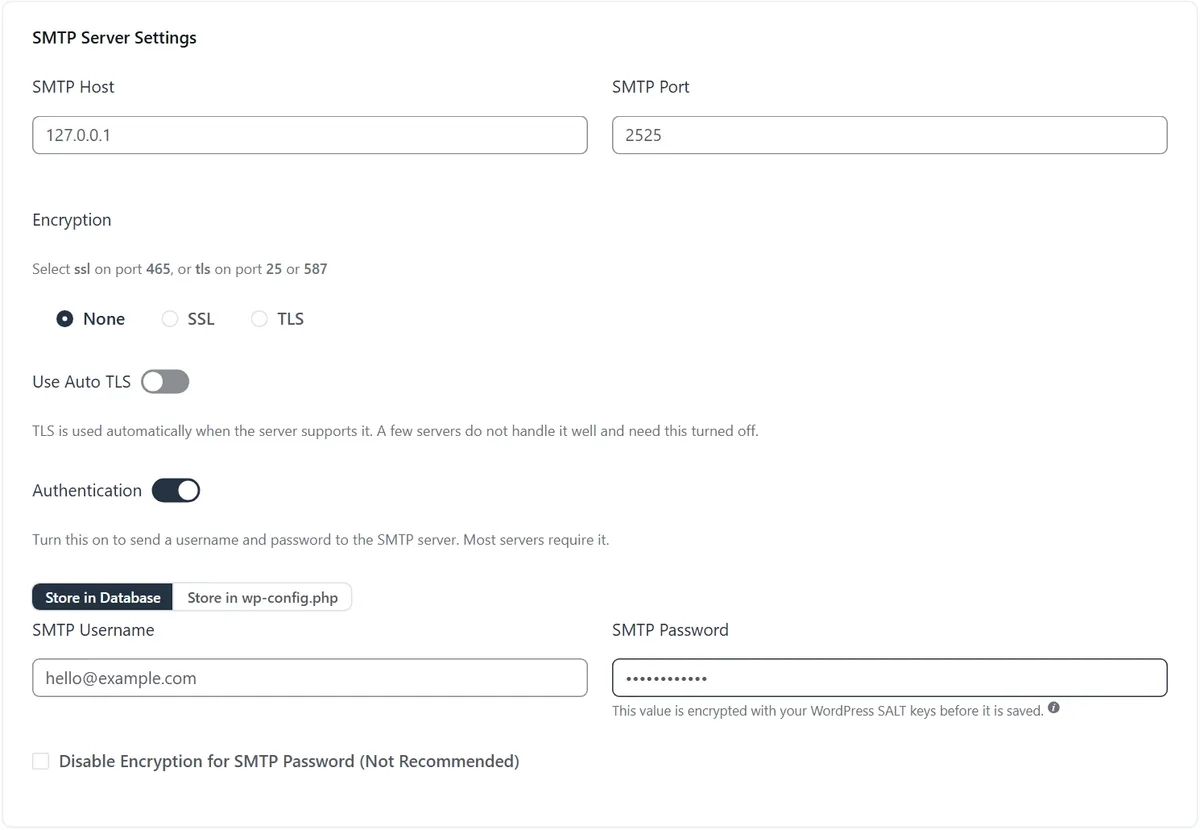
Saving proves nothing yet. On the test site, FluentSMTP answered “Settings saved.” while the server was refusing every login, and the server logged no login attempt at all: the plugin stores the settings without trying them.
“Settings saved” means the settings were stored. It says nothing about whether the mail server will let you in.
Step 3: refuse the login and read the error
With the refuse file in place, run the test. The wp eval-file run printed:
wp_mail failed: SMTP Error: Could not authenticate.
wp_mail returned falseCode language: JavaScript (javascript)
FluentSMTP’s Send Test Email button showed the same message:
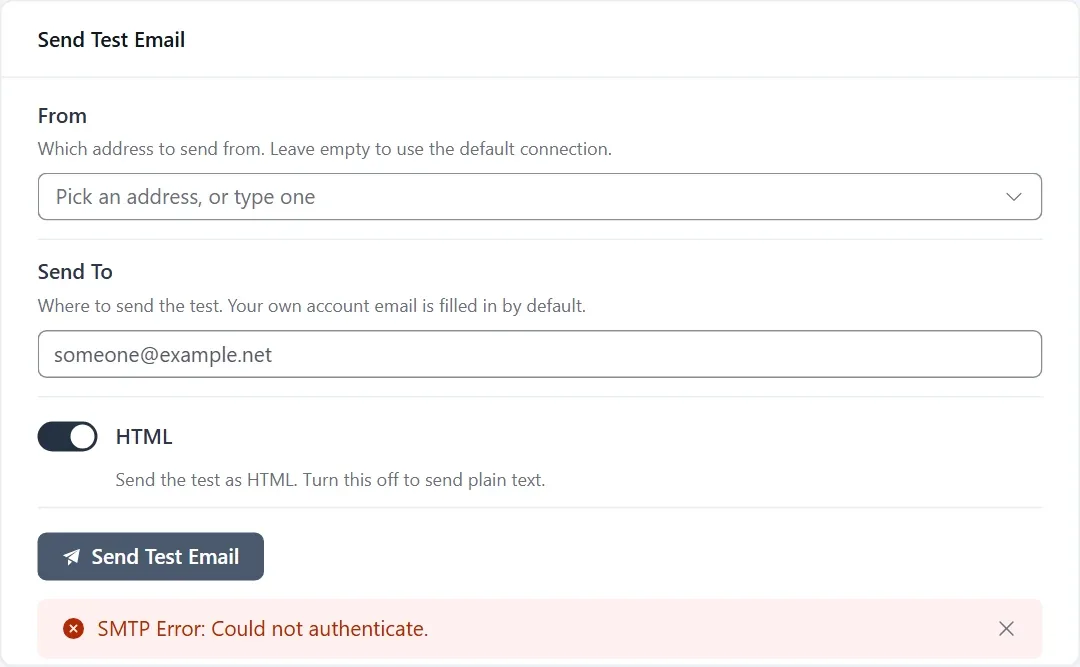
That message is what a real provider produces when it rejects the username or password, so you now know exactly how the failure looks on your site, safely. This is the moment to check the parts of your setup that react to failure: does your form plugin still tell the visitor “sent”? Does your SMTP plugin log the failure, or alert you? Leave the server refusing while you look, then fix whatever stayed silent.
If you get a different error here, it is a connection problem rather than a login problem, and it is worth knowing the difference. On the test site, a wrong port, and encryption left on (SSL or TLS), each produced SMTP Error: Could not connect to SMTP host. instead: WordPress never got as far as the login. Check the host and port, that the server is running, and, if WordPress runs inside a container, that 127.0.0.1 there means the container itself, not your machine.
Step 4: accept the login and confirm success
Delete the refuse file. The server reads it on every login, so there is no restart. Run the same tests again:
wp_mail returned trueCode language: JavaScript (javascript)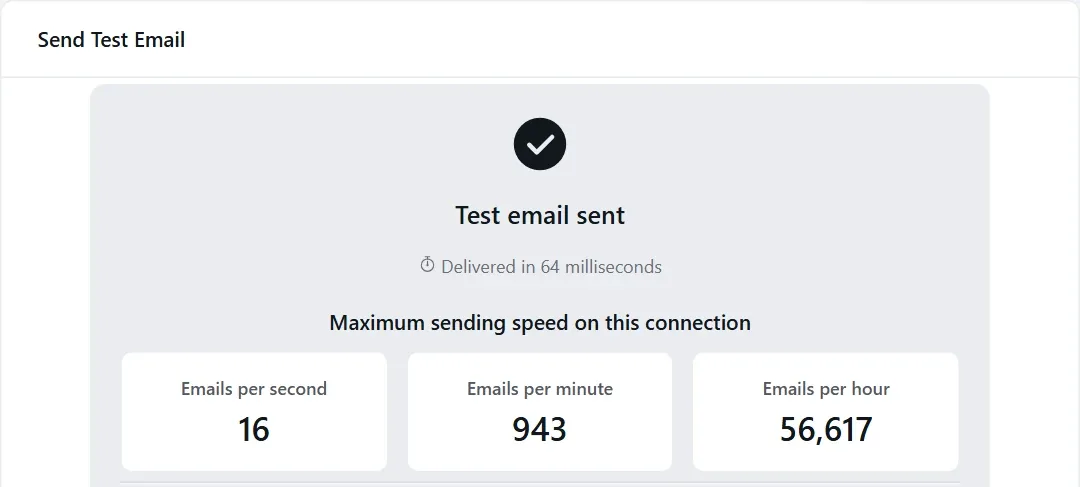
Meanwhile the server’s own window told the other half of the story:
login accepted (235)
message discarded (8760 bytes)
FluentSMTP said “Delivered in 64 milliseconds” and showed the notice “Email delivered successfully.” The server had thrown the message away. That isn’t a flaw in the plugin: “delivered” here means the mail server accepted the message, which is all any sending tool can see. Whether it then reaches an inbox, or the spam folder, is decided after the handover, the same gap as trusting a success message instead of checking the result.
A success message reports the handover to the mail server, not the inbox. A server that discards everything still gets one.
Step 5: what the test proved, and the one real send left
After steps 3 and 4 you know that WordPress reads your SMTP settings, connects, sends the login, reports a refusal clearly, and hands the message over when the login is accepted. You learned that without one message leaving the machine, and you can repeat it after every change.
The test server can’t tell you three things, because it isn’t your provider:
- Whether the real password is right. It ignores passwords; your provider doesn’t.
- Whether encryption works. It offers none, and real providers require it (SSL on port 465 or STARTTLS on 587).
- Where real mail lands. Spam placement depends on SPF, DKIM and DMARC for your domain, which only a real message to a real mailbox can show. If that message lands in spam, sending through your own mailbox and reading the headers is the fix.
So finish with one real send. Switch the host, port, encryption and credentials to your provider’s values, send a single test to a mailbox you own, and read its headers. On a staging copy, keep the test server in place permanently instead: staging then never mails anyone, and the real credentials never leave the live site.
Some SMTP plugins also have a switch that stops sending altogether; FluentSMTP’s settings call it Email Simulation (“Stop delivering email. Messages are still written to the log”). That is useful on staging, but it skips the connection, so it can’t show you a login failure. The test server can.
The short version
To test WordPress SMTP safely, run a local server that discards every message and refuses or accepts the login on demand, and point WordPress at it on port 2525 with encryption off. Refused, WordPress reports “SMTP Error: Could not authenticate.” and wp_mail() returns false; accepted, it reports success even though nothing was delivered. That proves the WordPress side; finish with a single real send to your own mailbox, and keep staging pointed at the test server for good.
Before you trust an SMTP setup, check:
- Test sends go to a server you control, not a real inbox.
- A refused login shows a clear error, and your forms don’t claim success.
- An accepted login returns true and the server receives the message.
- One real message to your own mailbox passes SPF, DKIM and DMARC.
- Staging copies point at the test server, not the live mailbox.
Frequently Asked Questions
Can I run the test server for a staging site on a web host?
Only if you can run Python on the same server as WordPress, usually over SSH, because the script listens on 127.0.0.1 and only programs on that machine can reach it. On shared hosting without shell access, use the SMTP plugin’s own option to stop sending instead, and test the login on a local copy of the site.
Why does WordPress need encryption turned off for this test?
The test server doesn’t offer encryption, so a WordPress set to SSL or TLS would fail before it ever sent the login, with a connection error instead of the authentication error you want to see. Turn encryption back on when you switch to your real provider; never send a real password unencrypted.
Will the test server keep a copy of the messages?
No. It counts each message’s size, prints one line, and drops it. If you want to read what WordPress sends (the subject, the HTML, the headers), you need a mail-catching tool that stores messages instead; this server is built only to test the connection and the login.

